Catalog and organize
How to catalog a record collection, step by step

On this page
To catalog a record collection, whether vinyl records, CDs or both, work one shelf at a time. For each record, find the specific release you own, not just the album, save it to a catalog such as your Discogs collection, note the media and sleeve condition, and file it in a folder named after where it lives. Keep anything you can’t identify yet on a research list.
VinylBox, an independent iPhone and iPad app for vinyl records, CDs and cassettes that works with your Discogs account, handles each of those steps at the shelf. Download it, sign in with Discogs (or create a Discogs account from VinylBox’s sign-in screen) and your collection syncs. Then scan a cover or barcode, choose your version, save it, and set its folder, condition and notes in the same sheet.
Download VinylBox for iPhone and iPad
What should a record catalog include?
For each physical copy, a record catalog should hold the specific release, its media and sleeve condition, where it’s kept and where it came from. Make one entry per copy: two copies of the same album can differ in pressing, condition and location.
| Detail | Why record it | Where it goes on Discogs |
|---|---|---|
| Artist, title and format | Find the music and tell the LP from the CD | Comes with the release you choose |
| Label, catalog number, country and year | Narrow dozens of versions down to a few | Shown on each release page |
| The specific release | Ties the tracklist, identifiers and value to your copy | The release you save, not the master release |
| Media and sleeve condition | Shapes value, upgrade and selling decisions | Media Condition and Sleeve Condition fields |
| Location | Lets you find the copy again | A folder named after the shelf or box |
| Provenance and extras | Where it came from, inserts, signatures | The Notes field |
The release matters most. A Discogs release page covers one edition, with its year, tracklist and identifiers (Discogs’ database search guide), while a master release gathers an album’s versions on one page. Folders and Discogs’ default condition and Notes fields cover the rest of the table.
Where should you keep a record catalog?
For most collectors, the best place for a catalog of vinyl records and CDs is a Discogs collection used through VinylBox: every entry links to a documented release, you can add records at the shelf, and a CSV export gives you a spreadsheet copy whenever you want one. Keep a spreadsheet for records Discogs doesn’t list. Our spreadsheet vs Discogs vs VinylBox comparison weighs the trade-offs. See how VinylBox syncs with Discogs.
How to catalog vinyl records and CDs with VinylBox
Download the app, sign in with Discogs and make a folder for one shelf. Then scan each record, choose your version, save it to the folder and add its condition.
-
Download VinylBox and sign in with Discogs. Open VinylBox and sign in with your Discogs account; if you’re new to Discogs, create an account from the sign-in screen. An existing collection comes across with its folders, condition grades and notes, along with your Wantlist, and changes sync both ways.
-
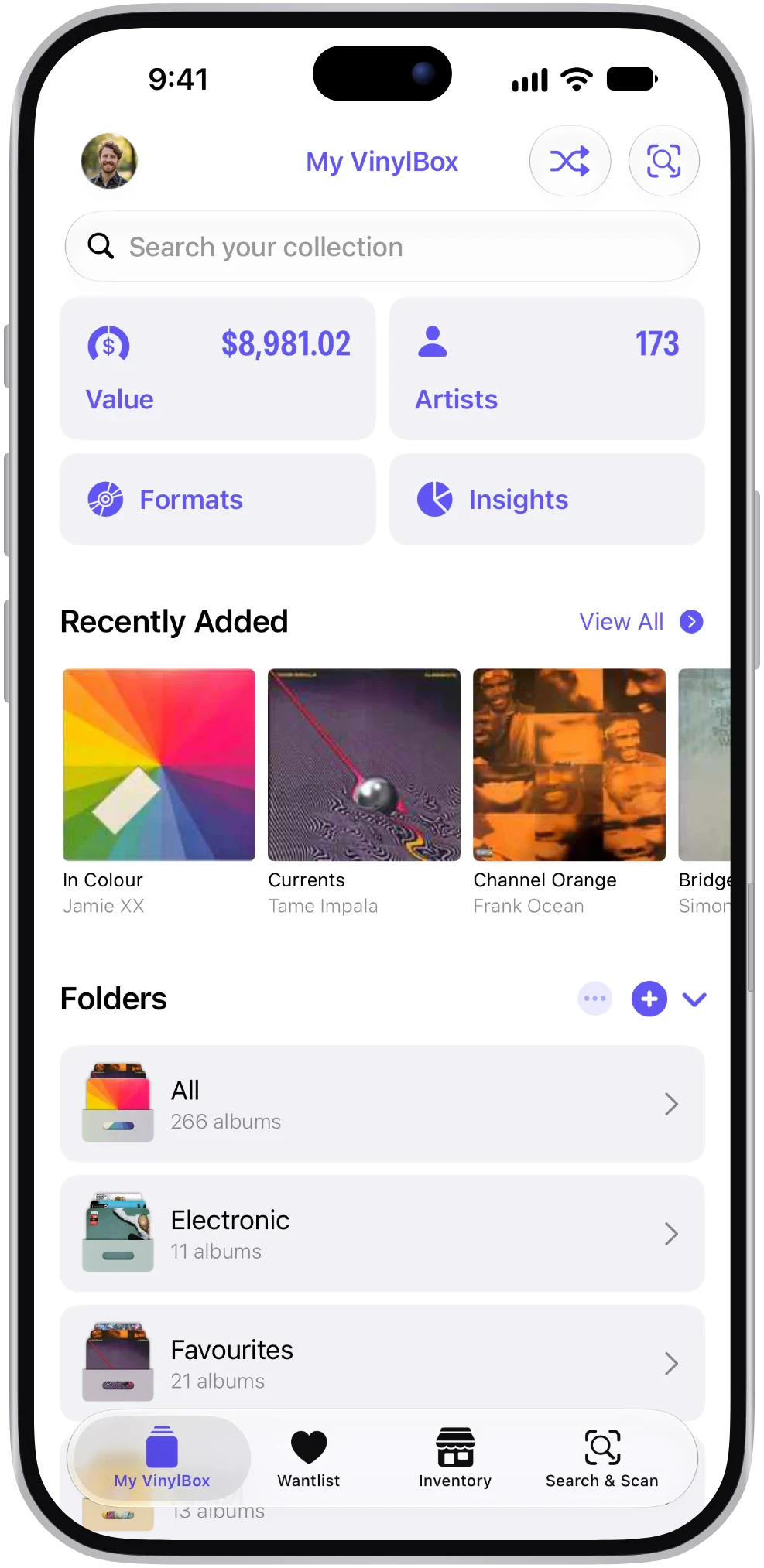
Make a folder for one shelf. Choose a section with a clear start and end, and create a folder named after it, such as “Living room A” or “Box 3”, with the + button beside Folders in My VinylBox. It appears on Discogs too.
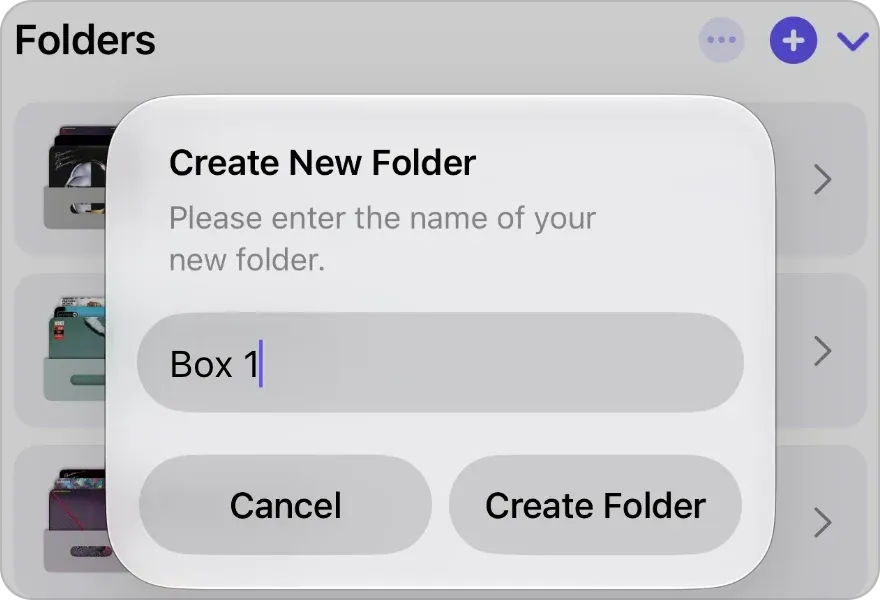
The + beside Folders opens Create New Folder. -
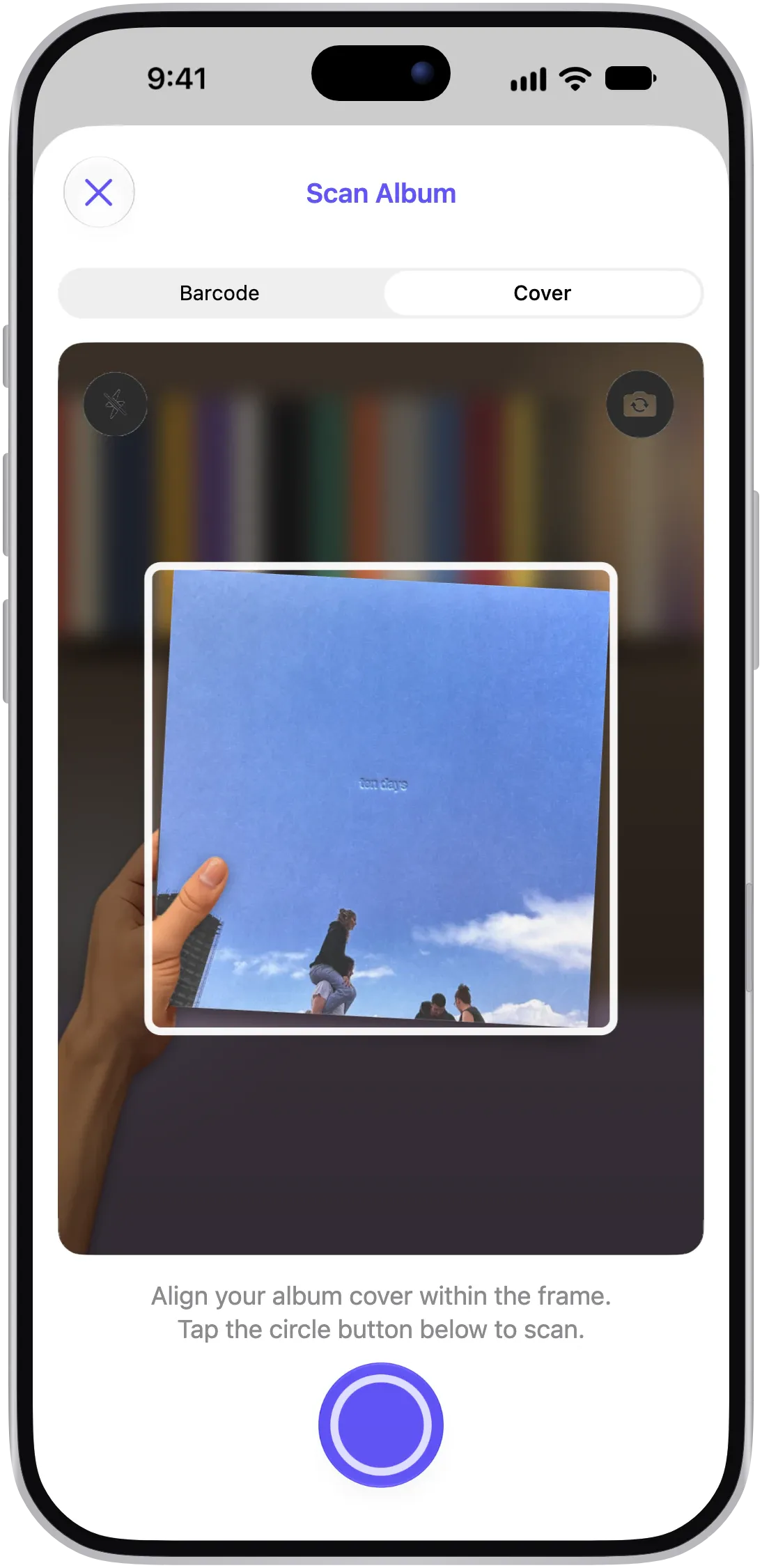
Scan the record. Use Barcode when the sleeve has one, since it’s the quicker route to a match, and Cover for older sleeves without one.
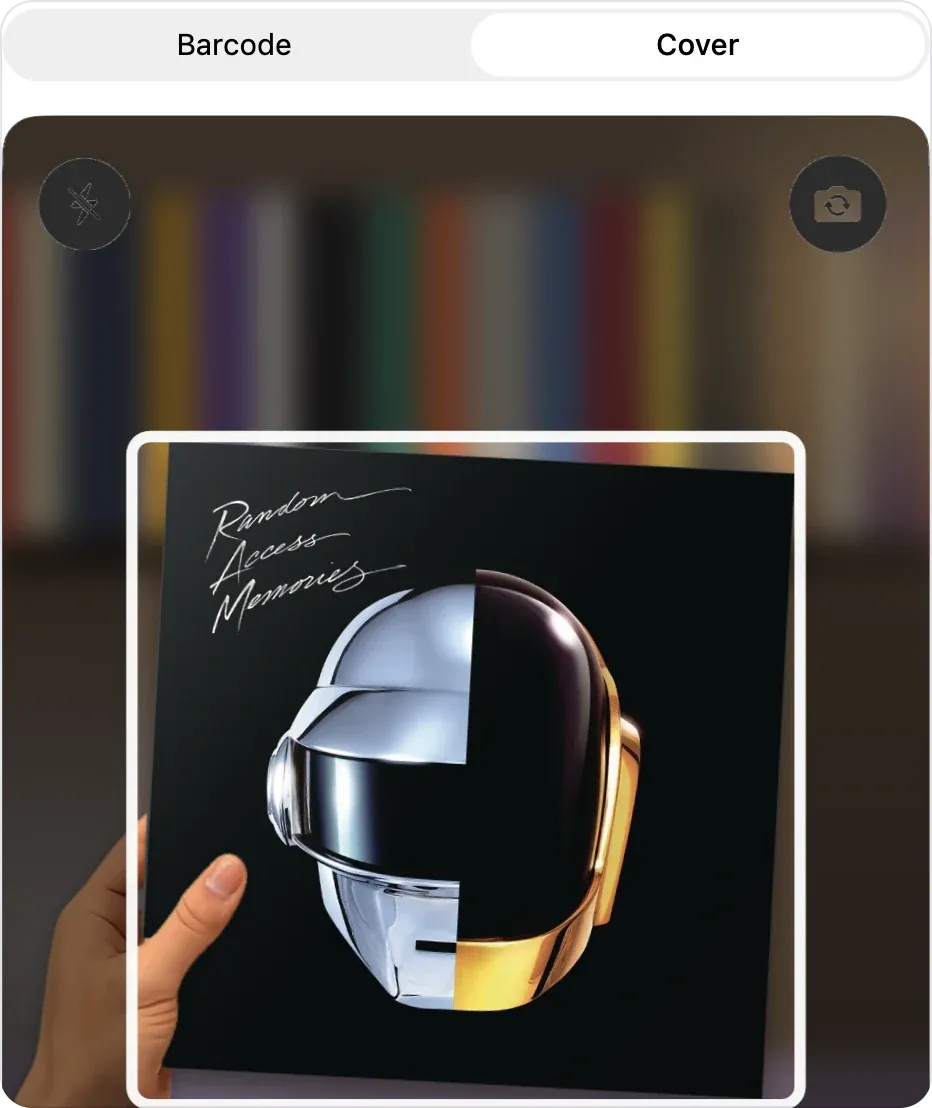
Pick Barcode or Cover, then line the sleeve up in the frame. -
Choose your version. Narrow the matches under “Select your version” with the format, country, year and label filters, or type the catalog number or a runout from your copy into the search field. Compare each result’s Matrix / Runout values (in a vinyl record’s dead wax, or around a CD’s center hole) with your copy; View Details on a result opens the release page, with photos that often include its back cover and center labels. If nothing settles it, put the record on your research list.
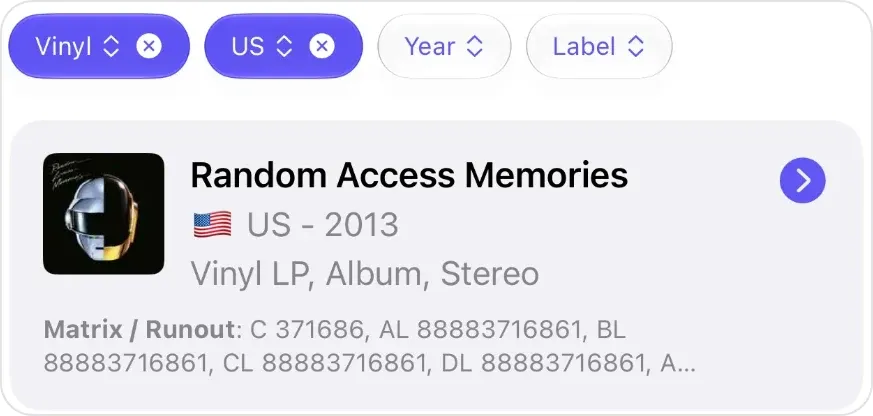
The filters narrow the versions, and each result lists its Matrix / Runout values. -
Save it to the shelf’s folder. Add the release to your collection, then set Folders in the same sheet to the shelf you’re working through.
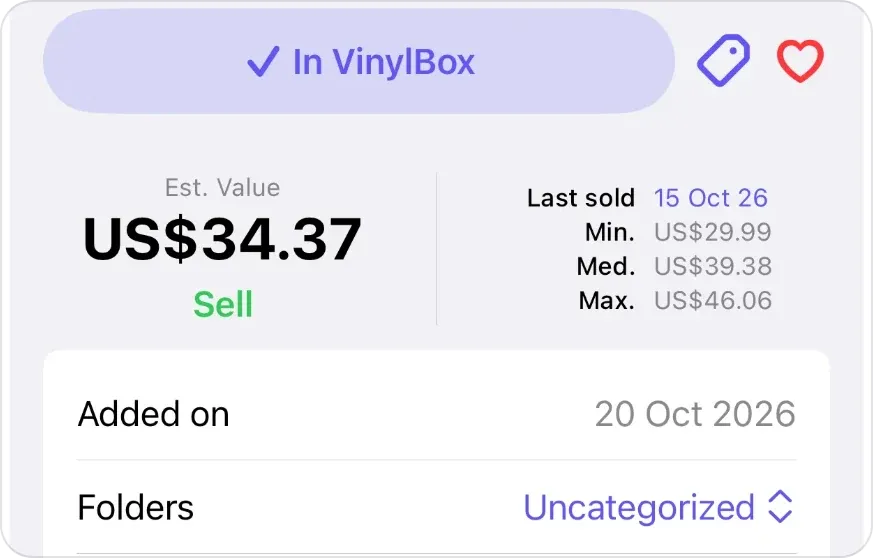
Once saved, the button reads In VinylBox; then set Folders to the shelf’s folder. -
Add condition and a note. Set Media Condition and Sleeve Condition, add a note, then reshelve the record before taking out the next one.
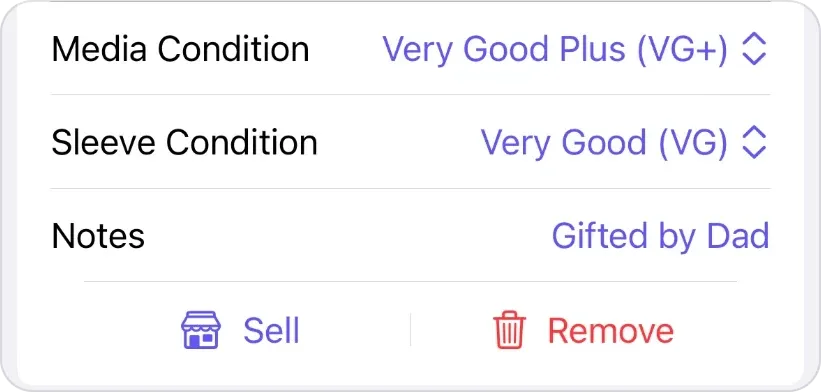
Media Condition, Sleeve Condition and Notes, in the same sheet.
A scan suggests candidates, and the version you choose is what makes the catalog accurate, because the same artwork often appears on several pressings. If a scan finds nothing, search by artist, title or label instead. Learn more about VinylBox’s cover and barcode scanner.
How do you add records to a Discogs collection?
Add the specific release, not the master release. The simplest way is the one above: in VinylBox, scan or search, choose your version and save it, and it syncs to your Discogs collection.
At a desk, you can also use the Discogs website: open the release page (not a master release, which has “/master/” in its URL), check its identifiers against your copy, click Add To Collection, then set the condition, notes and folder (Discogs’ collection guide). Records added there reach VinylBox when you tap Sync Collection in My VinylBox, or at its next sync.
How should you record condition and notes?
Grade the media and the sleeve separately on the Discogs scale (for a CD, the disc and its case or booklet), then add a short note with what a release page can’t tell you.
Discogs gives each collection entry three default fields: Media Condition, Sleeve Condition and Notes (Discogs’ notes guide). The grades are the Marketplace’s, following the Goldmine standard from Mint (M) and Near Mint (NM or M-) through Very Good Plus (VG+) and Very Good (VG) down to Poor (P), as Discogs’ grading guide defines them. Our guide to grading vinyl records shows how to check a record and its sleeve by eye and by ear.
A useful note answers the questions you’ll have later:
- Where it came from: the shop, fair or person, the date, and the price if you know it.
- What came with it: an insert, a poster, a printed inner sleeve or an obi (the paper band on many Japanese releases).
- What makes it yours: signed, a gift, a family copy.
- How you graded it: several grades describe how a record plays, so note “visual grade, not yet played” if you graded by eye.
In VinylBox, these fields and Folders sit in a release page’s In Your Collection section and in the scan sheet after you save, and they sync with Discogs.
How do you organize a Discogs collection into folders?
Use folders for where records live, one per shelf, crate or box. Each copy sits in one Discogs folder at a time, so let tags and Smart Folders handle every other way of grouping, such as format or signed copies.
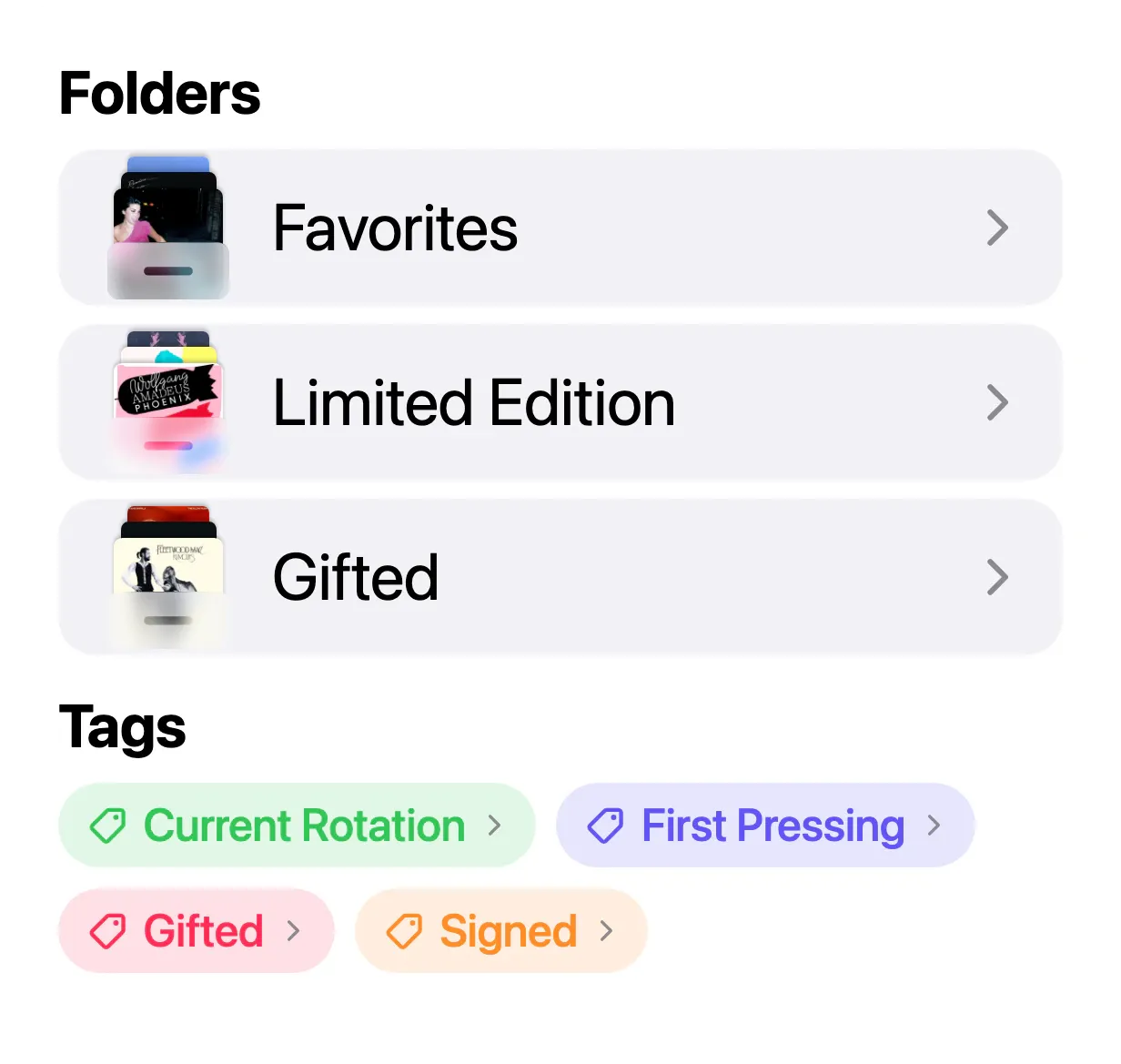
Folders can follow themes, as here, but a folder named after its shelf, such as “Box 3”, tells you where a record is. Our guide to organizing vinyl records compares filing systems and shows how to find a record’s shelf.
What if you can’t identify a record yet?
Don’t save a guess. Note that you own the record, where it is and the check that would settle the version, then come back to it. A record saved under the wrong release carries the wrong tracklist, identifiers and value, so write the next step precisely.
Hypothetical example: a research list in which the artists, titles, labels and catalog numbers are all fictional.
| Record (fictional) | What you know | Next check |
|---|---|---|
| Northbound Trio, Late Platform, LP | Fernway Records, FWY-012; three releases share the cover | Compare the side B runout with the two US candidates |
| Marla Vey, Glass Season, CD | One barcode matches two releases | Read the matrix text around the center hole |
| Kestrel Lane, Low Tide Songs, 7-inch | No barcode, and a cover scan found no match | Search by label and catalog number |
Keep those records together on one shelf, and when you settle one, save it in VinylBox and cross it off. Our guides to identifying a vinyl pressing and identifying a CD edition cover the label, runout, matrix and IFPI code checks.
How do you keep and use a record catalog?
Catalog new records before they reach the shelf, update an entry when a record moves or leaves, and keep a dated export. Then put the catalog to work.
Make cataloging part of putting records away
Scan, choose, save, file and grade, then shelve. In VinylBox, Collection Maintenance in My VinylBox counts the albums still missing a condition or a folder, so unfinished entries are easy to find.
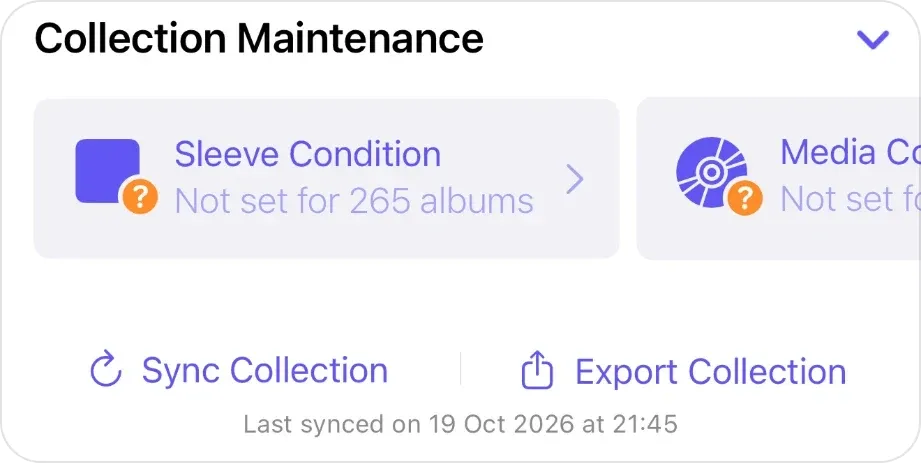
Keep a dated snapshot
From time to time, export your collection to a CSV file and put the date in the file’s name. Export Collection in My VinylBox can include your folder names and tags. Our guide to backing up your Discogs collection covers checking, storing and restoring the file.
Take your catalog to the record shop
VinylBox keeps your synced collection on your iPhone or iPad, so in a basement shop with no signal you can still browse its folders, Smart Folders and tags before buying a second copy. With a connection, scan a record you’re passing on, choose the version and tap the heart to add it to your Wantlist. Our checklist for buying used vinyl records covers what to check before you pay.
See what your collection is worth
When Discogs has sales to go on, each release page in VinylBox shows an estimated value, the date the release last sold, and minimum, median and maximum prices from Discogs sales; tap Last sold for the release’s Discogs sales history. VinylBox also values your whole synced collection as a range based on each release’s last 30 sales on Discogs, with a history chart that builds up while the app stays installed and signed in. An estimate describes the release, not your copy, so read it with your condition grades.
Discogs prices explained covers what the figures mean, and how VinylBox values records explains the value panel. Inherited a collection? See what to do with an inherited record collection.
Frequently asked questions
How long does it take to catalog a record collection?
Time your first session. Catalog one shelf, note how long it took, then multiply by the number of shelves. Barcoded records usually go fastest, because a barcode narrows the matches, while older LPs without one need a cover scan and often a runout check. Budget separate sessions for the research list.
Is VinylBox free for cataloging a collection?
VinylBox is free to download on the App Store, with a free plan to get started, perfect for smaller collections. Releases you add from VinylBox count toward the free plan’s limit, so a large collection may need VinylBox Pro, an optional subscription from just $1.99/month. Folders, tags, Collection Maintenance and the collection value range with its history chart are on the free plan; VinylBox Pro also lets you create unlimited folders and tags.
Do I need a Discogs account to catalog vinyl records and CDs in VinylBox?
Yes, to save them. You can scan and search in VinylBox without signing in, but adding records to a collection or Wantlist needs a Discogs sign-in, because that’s where your collection, folders and Wantlist live. If you don’t have an account yet, create one for free from VinylBox’s sign-in screen.
Can I catalog CDs and cassettes the same way as vinyl records?
Yes. VinylBox catalogs vinyl records, CDs and cassettes in the same Discogs collection, with the same folders, condition grades and notes. Start with the barcode for most CDs, choose your edition by country, year and catalog number, and read the matrix text around the center hole when editions look alike. Our guide to identifying a CD edition covers those checks, and you can see how to catalog CDs with VinylBox.
Is VinylBox the official Discogs app?
No. VinylBox is made by an independent developer and works with your Discogs account through the Discogs API. It isn’t affiliated with, sponsored or endorsed by Discogs, and you can use it alongside the official Discogs app with the same account. Compare Discogs apps for iPhone and iPad.
Your first session can be a single shelf: download VinylBox, sign in with Discogs, make the shelf’s folder and scan the first record.