Prices, buying and selling
Buying used vinyl records checklist: what to check before you pay

On this page
Before you buy a used vinyl record, check four things: that you don’t already own that release, that the copy is the pressing you want, that the disc and sleeve are in a condition you accept, and that the price fits what the same release has recently sold for in that condition. After you pay, save it to your collection with its grade and price.
VinylBox, an independent iPhone and iPad app for vinyl records, CDs and cassettes that works with your Discogs account, helps with three of those checks: your synced collection stays on your device for duplicate checks, a cover or barcode scan lists candidate releases with their runouts, and each release shows an estimated value and recent sold prices where Discogs has them.
Download VinylBox for iPhone and iPad
What to check when buying used vinyl: the checklist
Check ownership, pressing, condition and price for every used vinyl record you’re tempted by, at a shop, a fair or a stall. Save this checklist to your phone before your next trip.
Before you go
- Your Wantlist is up to date, and a short trip list, on your phone or on paper, gives each must-have’s pressing and the most you’ll pay.
- Your collection has synced, so you can browse it without signal.
- For each upgrade, your trip list says what’s wrong with the copy you own.
In the shop
- You don’t already own this release, or you’re buying a second copy on purpose.
- The catalog number, labels and runouts match the pressing you want.
- Every disc and insert is there, and each disc matches its sleeve.
- Both sides of the disc pass a look under good light (no deep scratches, warps or cracks), and you can live with the sleeve.
- The price is in line with recent sales of that release in that condition, and within your limit.
- You know whether you can listen first, and what happens if it skips at home.
After you buy
- It’s in your collection with its condition and a note of where you bought it and what you paid.
- It’s off your Wantlist and trip list, unless you still want a better copy, and you’ve removed the Upgrade tag from the record you replaced.
- You’ve played it through while you can still take it back.
What to do before you go record shopping
Before you go, note what you’re looking for and the most you’ll pay for each, and sync your collection for checks in the shop.
Start with your Wantlist: download VinylBox and sign in with Discogs, and your Wantlist and collection sync both ways. New to Discogs? Create a free Discogs account from VinylBox’s sign-in screen. A Wantlist holds the releases you’d like to own (Discogs’ Wantlist guide); in VinylBox, add one with the heart on a scan or search result.
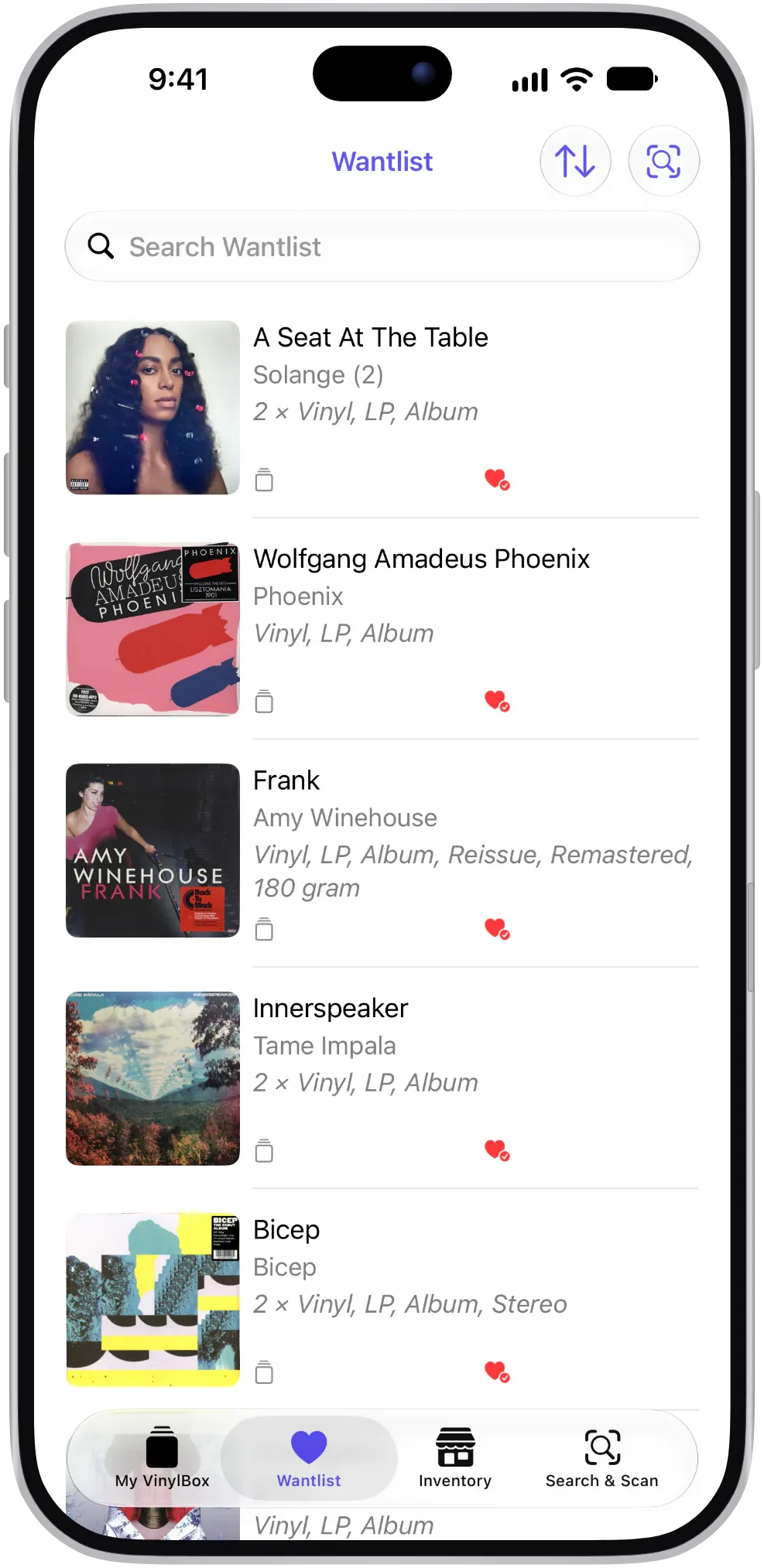
Then write a short trip list, in your phone’s Notes app or on paper, with two things for each must-have:
- The copy you’re after. “Any clean listening copy” or “the original US pressing with its lyric insert”, with the catalog number if the pressing matters.
- Your ceiling. The most you’ll pay, and at what grade, such as “up to $30 at VG+”. A limit set at home is easier to keep at the counter.
For an upgrade, add what’s wrong with the copy you own, such as a skip on side B or a split seam: that’s the test the replacement must pass. Tag that record Upgrade in VinylBox too, creating the tag from the tag button beside “✓ In VinylBox” on its page, so the tag lists every record you hope to replace.
Last, tap Sync Collection in My VinylBox before you leave, so the copy on your phone is current. Between trips, the VinylBox Price widget on your Home Screen follows a release’s price and availability on the Discogs Marketplace: asking prices, not sold prices. Read how VinylBox works with your Discogs Wantlist.
How to avoid buying duplicate vinyl records
To avoid buying a duplicate, check your collection for the release, not just the album, before you pay. In VinylBox, Search your collection, at the top of My VinylBox, matches album titles, artists and years. Your synced collection also stays on your iPhone or iPad, so even in a basement shop with no signal you can browse it by folder, Smart Folder and tag.
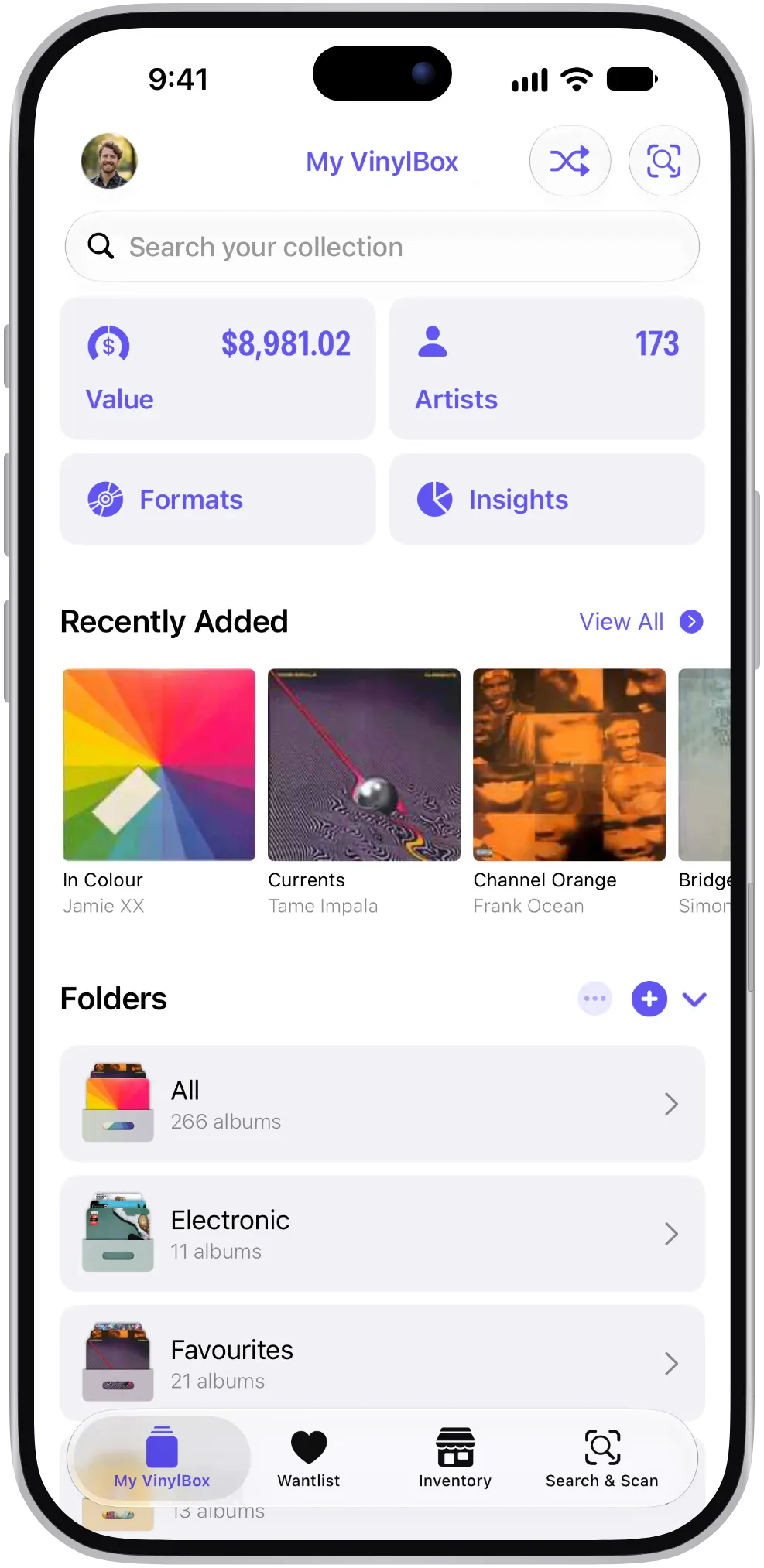
If your collection has the CD or a recent reissue, the vinyl record in your hand may be a pressing worth having, or the same music twice. Offline, a Smart Folder you’ve created in My VinylBox with Formats set to CD lets you scroll every CD you own. With a connection, open the copy you own to compare its label and year with the sleeve in front of you. Smart Folders are free to try, and VinylBox Pro, from just $1.99/month, lets you create unlimited Smart Folders.
How to check the pressing of a used record in a shop
Before you trust a sticker or a price, match the copy in your hands to one Discogs release: scan it, narrow the versions, and compare the catalog number and runouts with the disc. Values belong to a release, so the wrong match means the wrong price.
-
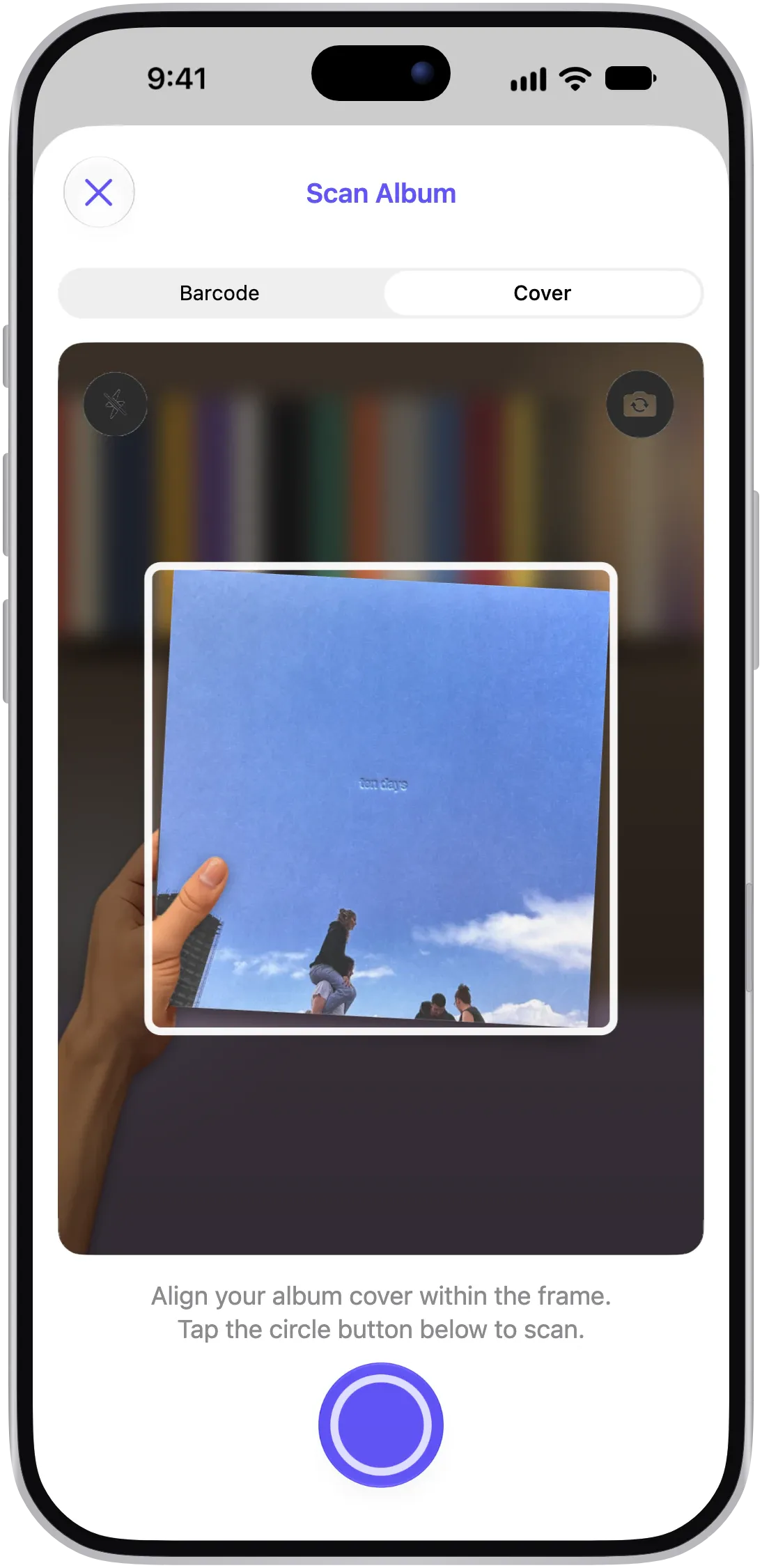
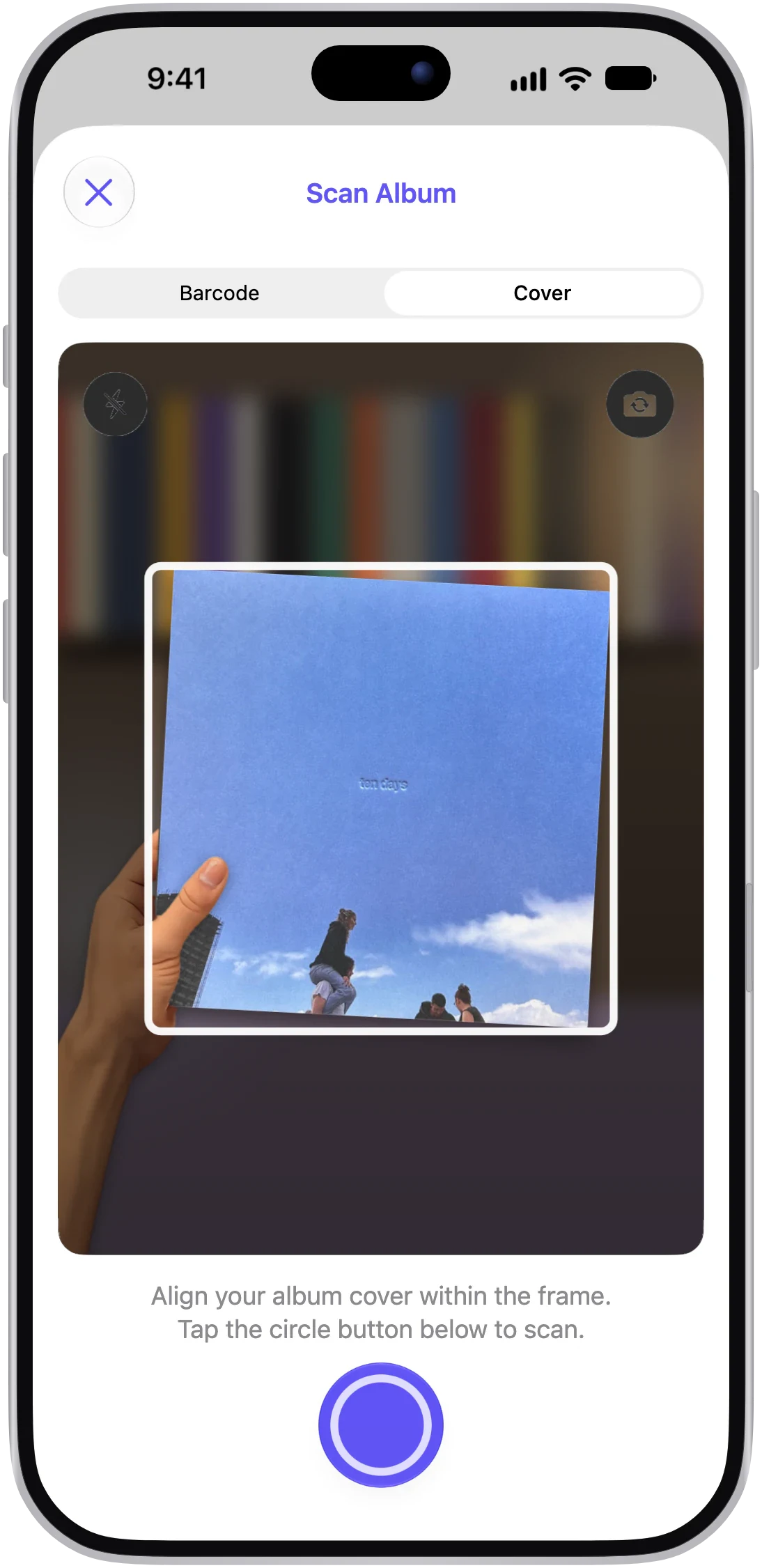
Scan the cover or barcode. Open the scanner in VinylBox and pick Barcode if the sleeve has one, or Cover for older sleeves.
-
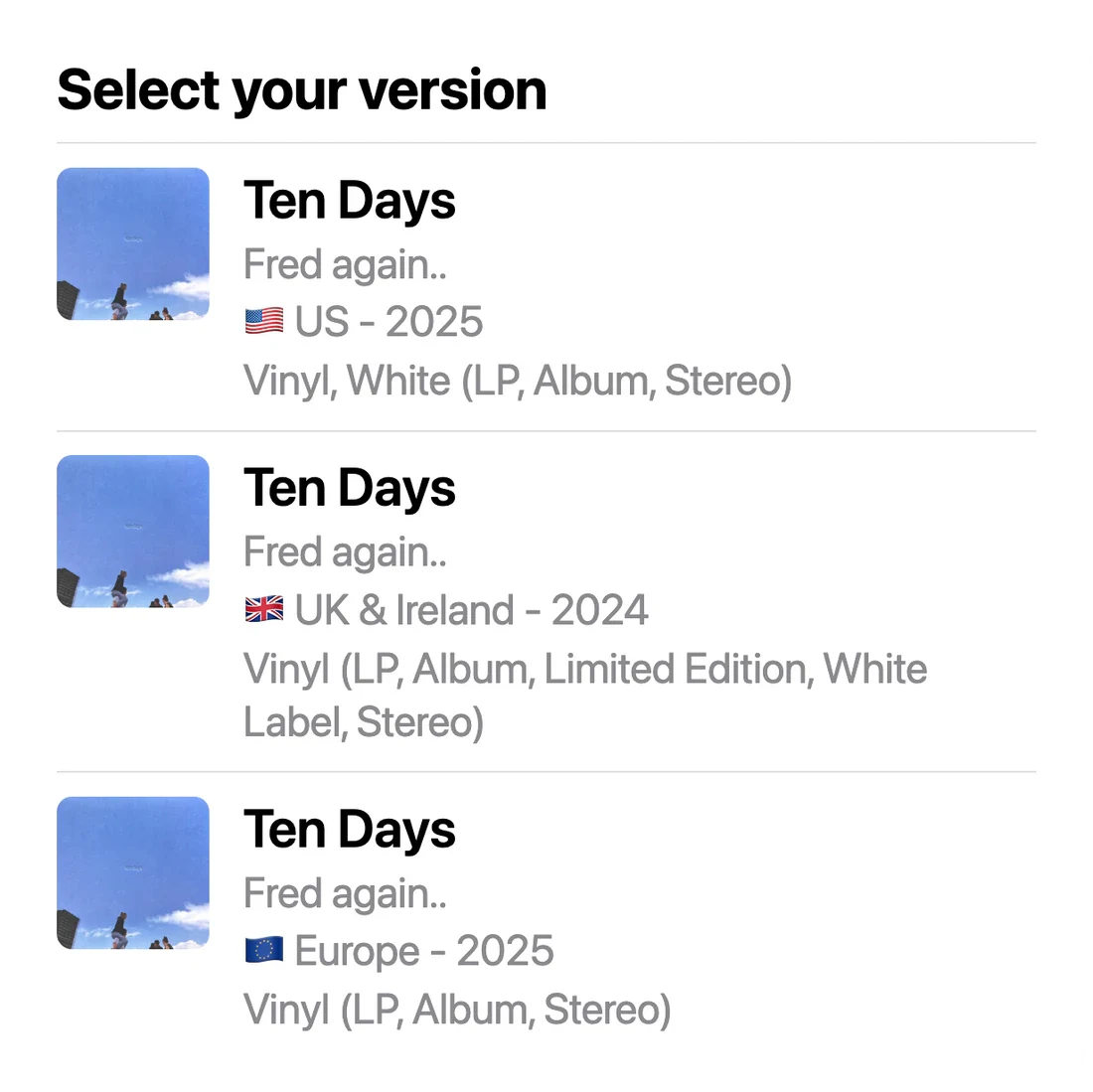
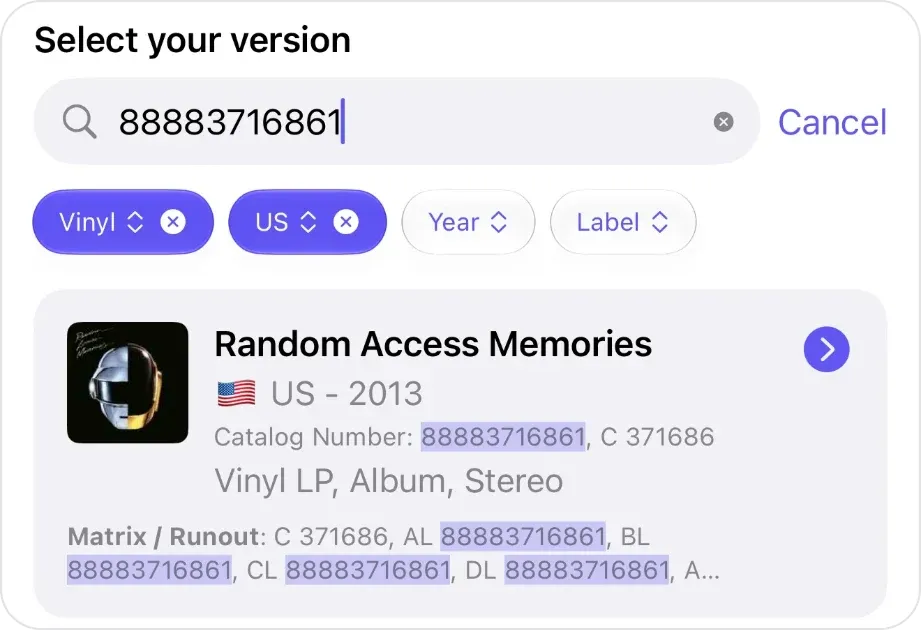
Search for the catalog number. Under “Select your version”, filter by format, country, year and label, then type the catalog number from the spine or label into the search field; VinylBox highlights matching catalog numbers and runouts.
-
Compare the runouts. With the shop’s OK, slide the disc out, hold it by the edge and label, and tilt it under the light to read the runout, the code in the dead wax, on both sides. Open the matching result to see its full runout list and barcode.
-
Check the labels in the photos. Tap View Details on the result. The release page’s photo gallery often includes the back cover and center labels to compare with your copy.
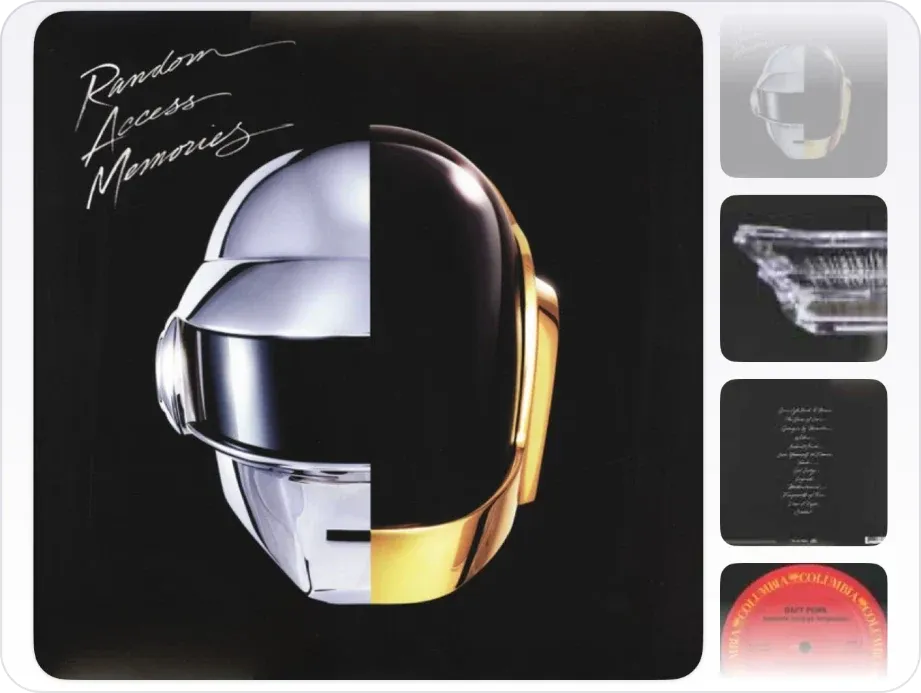
A scan suggests candidates; you confirm the pressing. Treat “first pressing” or “rare” on a sticker as a claim to check, and if nothing settles it, price the copy as the cheapest version it could be. Read how to identify a vinyl pressing for labels, barcodes and runouts, or how the VinylBox scanner works.
How to inspect a used record before you buy it
Ask before you take a disc out of its sleeve, then hold it by the edge and label, as the Library of Congress advises, and look at both sides under good light. Check the sleeve and contents too, and listen if the shop lets you.
| Check | What to look for | Why it matters |
|---|---|---|
| Playing surface | Scratches across the grooves, scuffs, haze | Light scuffs are often cosmetic; scratches can click |
| Shape and edge | Warps (sight along the edge), chips, cracks | A bad warp can make it skip |
| Labels | Writing, stickers, spindle marks | Writing and stickers lower the grade |
| Sleeve | Split seams, ring wear, writing, water damage | The sleeve is graded separately |
| Contents | Every disc, inner sleeve and insert, an obi strip | A missing insert lowers the value |
On Discogs’ grading scale, which follows the Goldmine standard, a Very Good Plus (VG+) record’s defects are mostly cosmetic, while a Very Good (VG) record has surface noise you can hear in quiet passages and intros. At a listening station, play the quietest track and any marked section. For the full scale, read how to grade vinyl records.
How much should you pay for a used vinyl record?
Pay no more than copies of the same release, in the same condition, have recently sold for, and never more than your own ceiling. A shop price within those sales is good value: you’ve seen the copy, can often listen first, and there’s no shipping on top.
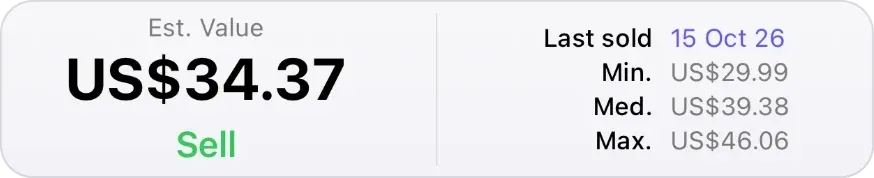
In VinylBox, open the result you chose: its value panel shows recent sales on the free plan when Discogs has them:
- Read the value panel. Est. Value is VinylBox’s estimate for the release, based on Discogs data, and Last sold, Min., Med. and Max. summarize its recent sales.
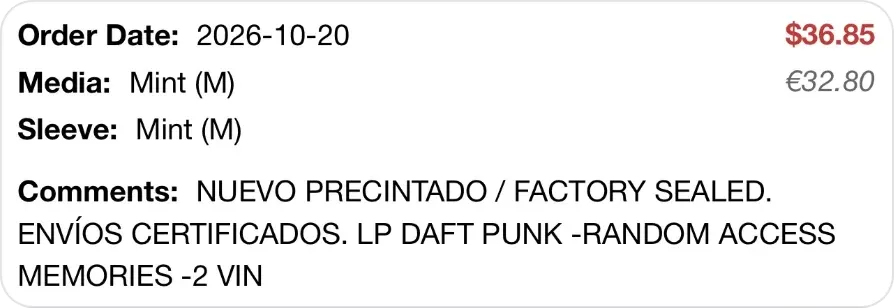
- Open the sales history. Tap Last sold, and Discogs’ sales history opens without leaving VinylBox, with each order’s date, media and sleeve grades, price and seller comment.
-
Pick out the sales in this copy’s grade. Use your own grade from the inspection, not the sticker’s. A factory-sealed Mint sale, like the one above, says little about a played VG copy.
-
Compare, then decide. If the sticker sits within the sales for that grade and under your ceiling, it’s a fair price. If it’s over either, ask whether the price is negotiable or put the record back: your ceiling wins even when the sales support the price. If you pass, tap the heart on its version to add it to your Wantlist, and write the price you saw on your trip list.
Hypothetical example: the artist, title, label, catalog number and prices are invented. You find Paper Orchard by The Brindlemoor Sisters (Thistlecombe Records, TCR-0907), priced at $28 and marked VG+. Under the light, the disc has light scratches across side B, and the sleeve looks VG+.
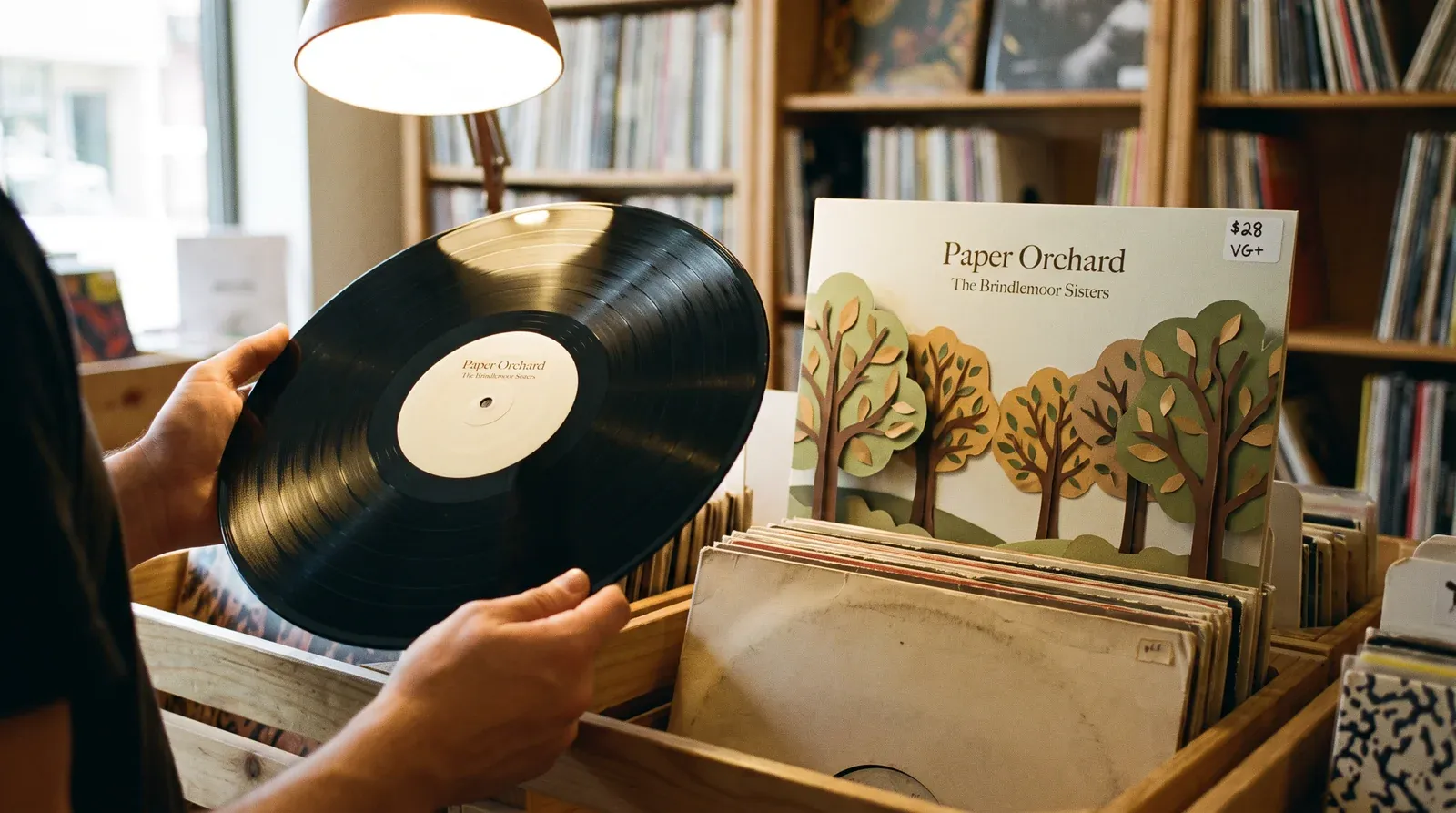
The release’s recent sales, by media grade:
| Media grade | Recent sales | Middle of those sales | A $28 sticker is… |
|---|---|---|---|
| Near Mint (NM) | $35, $43 | $39 | Below both sales |
| Very Good Plus (VG+) | $22, $26, $30 | $26 | Within the sales |
| Very Good (VG) | $11, $17 | $14 | Double the middle |
If side B plays quietly, the shop’s VG+ holds and $28 sits within the VG+ sales: fair for a copy you’ve heard, if it’s under your ceiling. If the scratches click, it’s VG at best, where sales of $11 to $17 make $28 too much. If the shop won’t let you listen, price it as VG.
Discogs prices explained shows how far to trust a handful of sales, and how VinylBox values records covers the value panel.
What to do after you buy a used record
Save the record to your collection the same day, with its condition, where you bought it and what you paid, then play it through while you can still return it. In VinylBox, you save it from one sheet:
-
Save the version you checked. On the scan sheet for the release you chose, at the counter or from a new scan at home, tap “+ Add to VinylBox”. The button then reads “✓ In VinylBox”.

Once saved, the button reads ✓ In VinylBox, with tag and heart buttons beside it. -
Set its folder, condition and a note. Below the button, set Folders to where the record will live, Media Condition and Sleeve Condition from your inspection, and Notes with the shop or fair, the date and the price you paid. They sync with your Discogs collection, where notes stay private unless you’ve made them public (Discogs’ collection notes guide).
-
Clear the want. Take the release off your Wantlist and cross it off your trip list, unless you’re still after a better copy. For an upgrade, remove the Upgrade tag from the record you replaced.
-
Play it through, then shelve it. Listen to every side within the shop’s return window, then store the record upright, away from radiators and direct light.
If you skip the condition in a hurry, Collection Maintenance in My VinylBox counts the records still missing one. To catalog the rest of your shelves, see cataloging a record collection, and how to organize vinyl records for where to file them.
Frequently asked questions
What should I ask a record shop before buying a used record?
Ask four questions before you pay. “Was it graded by eye or played?” tells you what the grade rests on. “Can I hear side B, track 3?”, or whichever track looks marked, tests the worst of the copy. “What is the first-pressing claim based on?” checks the price. “What happens if it skips at home, and how long do I have?” covers a fault found later.
Is it worth buying a used record with scratches?
It can be, at the right price. Light scuffs are often cosmetic, while scratches across the grooves may click or hiss. If you can listen, play the marked section; if you can’t, grade the copy lower and compare the price with sales at that grade.
How do I know if a used record is overpriced?
Compare the sticker with recent sold prices for the same release in the copy’s condition. In VinylBox, choose your version from a scan and tap Last sold to open Discogs’ sales history, with each sale’s date, grades and price. A sticker well above the sales in that grade is high.
Can I check my Discogs collection in a record shop with no signal?
Yes, with VinylBox. Your synced collection stays on your iPhone or iPad, so you can browse it by folder, Smart Folder and tag without signal; tap Sync Collection in My VinylBox before you leave so it’s current. Scan results and Discogs’ sales history come from Discogs online, so plan on a connection for those.
Does the same checklist work for buying used CDs?
Mostly, yes: when buying a used CD, check your collection, scan the barcode and choose the edition by its country, catalog number and the codes around the center hole. VinylBox shows each result’s Mastering SID Code and Mould SID Code when Discogs has them, and its search matches them. Hold the disc by its edge and center hole and check both sides, especially the label side, where a scratch can reach the data layer. A cracked standard jewel case is replaceable and isn’t graded on Discogs, so judge the disc and booklet. Read how to identify a CD edition.
Is VinylBox free to use when buying vinyl records and CDs?
VinylBox is free to download on the App Store, with a free plan to get started, perfect for smaller collections. Collection checks, scanning, values and recent sold prices are included. Releases you add from VinylBox count toward the free plan’s limit, so a large collection may need VinylBox Pro, from just $1.99/month.
Before your next trip to a record shop or fair, download VinylBox and sign in with Discogs: let your collection sync, write your trip list, and scan the first record that catches your eye before you take it to the counter.