Prices, buying and selling
How to grade vinyl records and sleeves


On this page
To grade a vinyl record, grade the record and its sleeve separately on the Goldmine scale that Discogs uses, from Mint to Poor. Inspect both sides under a bright, angled light, play the record if you can, and note every defect with its side and track. The worst defect usually sets the grade. When a copy sits between two grades, choose the lower one and say why.
VinylBox, an independent iPhone and iPad app for vinyl records, CDs and cassettes that works with your Discogs account, keeps those grades with the copy. Set Media Condition, Sleeve Condition and Notes once you save a copy, or later on its release page, and let Collection Maintenance round up the vinyl records and CDs still missing a grade.
Download VinylBox for iPhone and iPad
What is the Goldmine grading scale for vinyl records?
The Goldmine scale is the standard set of condition grades for records: Mint (M), Near Mint (NM or M-), Very Good Plus (VG+), Very Good (VG), Good Plus (G+), Good (G), Fair (F) and Poor (P). Discogs uses it on the Marketplace and in your collection’s condition fields, with the record and the sleeve graded separately.
| Grade | The vinyl record | The sleeve |
|---|---|---|
| Mint (M) | Perfect and never played, possibly still sealed; use it rarely, if at all | Perfect, without a mark |
| Near Mint (NM or M-) | Glossy, with no visible wear and no marks on the labels; plays without surface noise | At most a trace of handling; no creases, ring wear, seam splits or cut-out marks |
| Very Good Plus (VG+) | Faint scuffs or hairline marks you can’t hear; a slight warp that doesn’t affect the sound | Minor wear: slightly turned-up corners, a split under an inch at the bottom seam, possibly a cut-out mark |
| Very Good (VG) | Duller, with groove wear and light scratches you can feel; surface noise in quiet passages that doesn’t drown the music | Obvious handling: ring wear, creases, longer seam splits, writing or a price sticker |
| Good Plus (G+) and Good (G) | Plays through without skipping, with heavy noise, crackle and visible wear | Clear seam splits, heavy ring wear, tape or writing |
| Fair (F) and Poor (P) | Cracked, badly warped, or skips and repeats | Split through, water damaged or heavily marked |
The table condenses Discogs’ grading definitions and Goldmine’s Record Grading 101. “Good” is a low grade, far below the word’s everyday meaning. In-between grades such as VG++ vary from seller to seller, as Goldmine points out; Discogs sticks to the eight above.
How to grade vinyl records, step by step
Work in the same order every time, write as you go, and choose the grades only at the end.
-
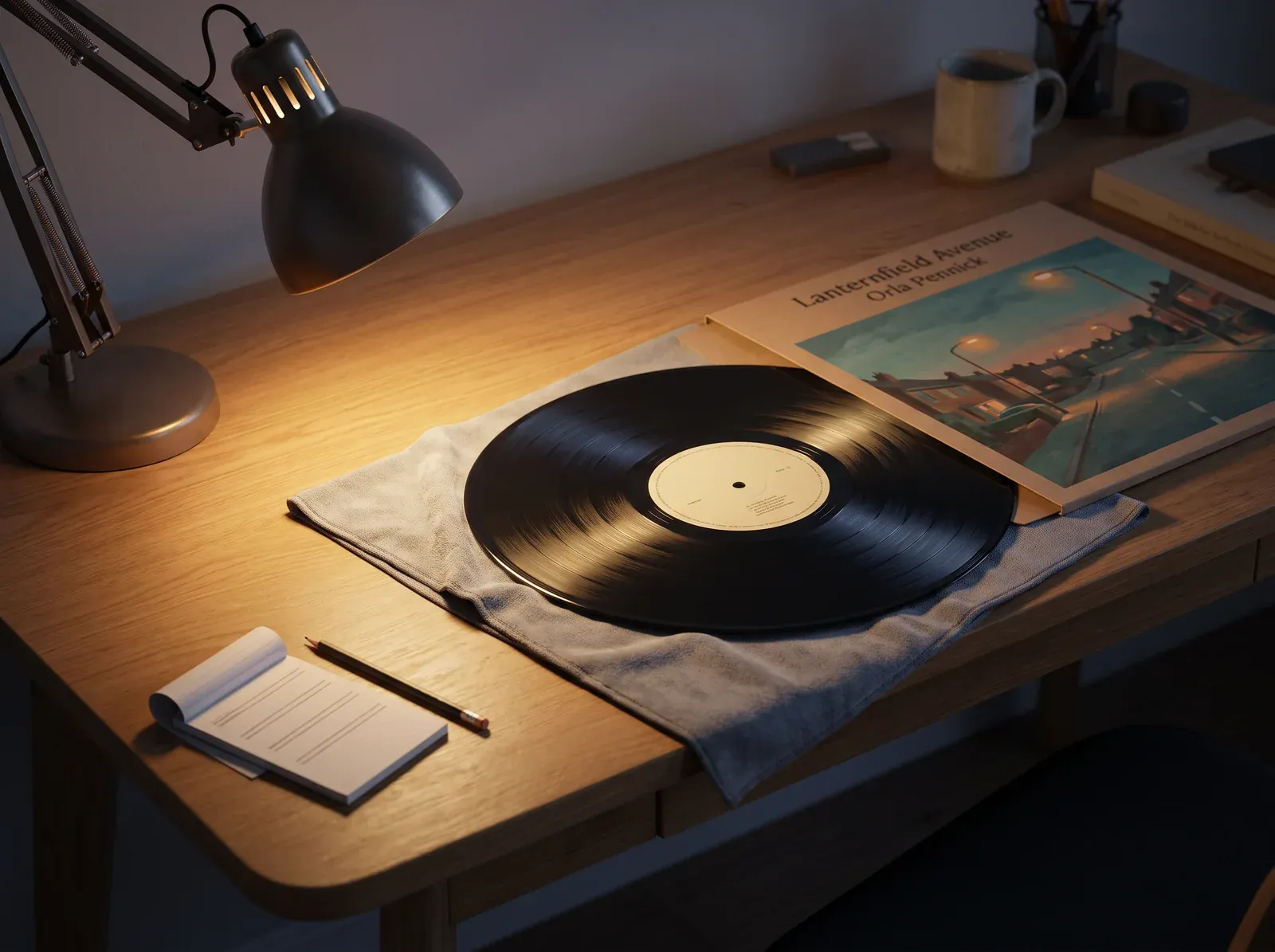
Set up a bright light and a clean surface. Angle a lamp close to the record: raking light shows marks that overhead light hides. Wash and dry your hands, and hold the record by its edge and label only, as the Library of Congress advises. Start a note with four lines: side A, side B, sleeve and contents.
-
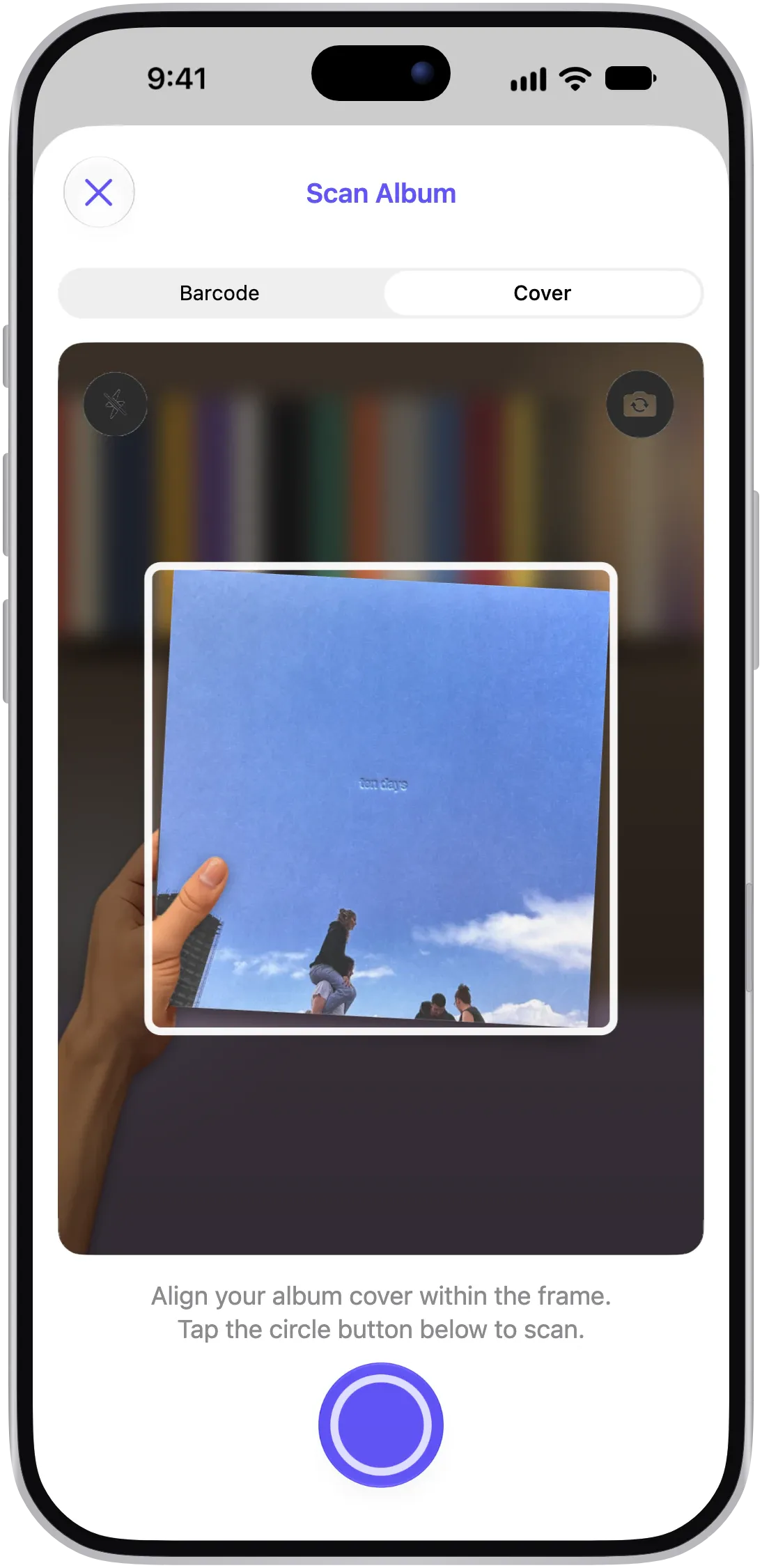
Compare your copy with its release. In VinylBox, scan the cover or barcode, choose your version and tap View Details: the release page’s photos, often of the back cover and labels, show what your copy should include. Note any insert or printed inner sleeve that’s missing. Our guide to identifying a vinyl pressing covers the checks.
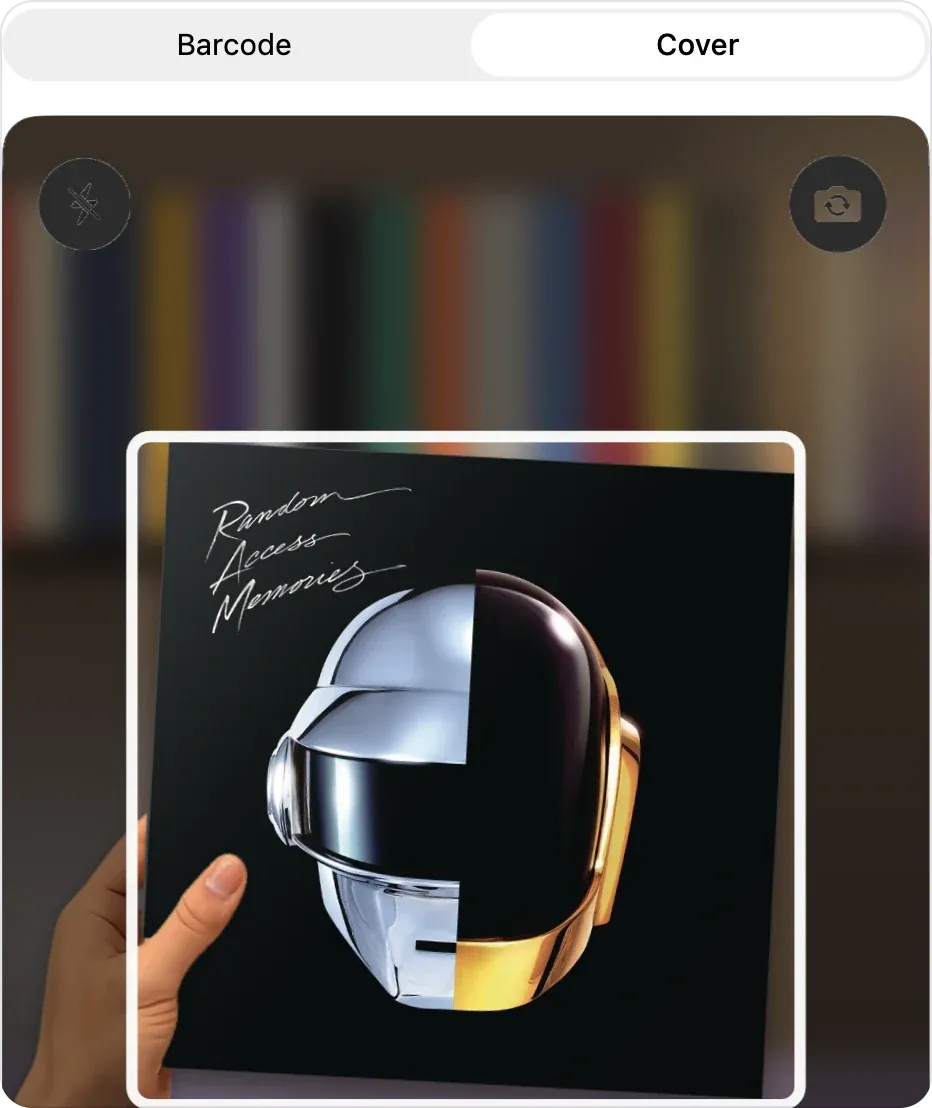
Pick Barcode or Cover, then line the sleeve up in the frame. -
Inspect each side of the vinyl record. Tilt it slowly under the lamp, looking for scuffs, scratches and dull patches of groove wear. A scratch you can feel with a fingernail means VG or lower in both Discogs’ and Goldmine’s definitions; to test one, touch only that line, lightly, with a clean, dry nail. Check the edge for warps and the labels for writing and stickers. If dust hides the surface, clean the record first to tell smudges from scratches.
-
Play both sides. With a clean stylus, listen to every track, including the quiet intros and fade-outs where surface noise shows first, and note each click, pop or skip with its side and track. Skip this step for a sealed copy or one you think is Mint: Discogs’ grading resource advises against playing a record you suspect is Mint, and to some collectors, Goldmine notes, an opened shrink wrap means Near Mint at best. Describe it as sealed instead (see the FAQ).
-
Grade the sleeve on its own. Check the front, back, spine, seams, corners and opening, then the inner sleeve and inserts. A clean record doesn’t lift a tired sleeve.
-
Choose the grades. Let the most serious defect set the ceiling. A record’s grade has to fit both how it looks and how it sounds: a silent scuff can still be VG+, a ticking scratch can’t, and obvious wear such as lost gloss keeps even a quiet record below VG+. If it plays better than it looks, note “looks VG, plays VG+”. Between two grades, choose the lower one.
-
Save the grades in VinylBox. Sign in with Discogs inside VinylBox; new to Discogs? Create a free Discogs account from VinylBox’s sign-in screen. On the release page you opened in step 2, or in the scan sheet, tap “+ Add to VinylBox”. Once the button reads “✓ In VinylBox”, set Media Condition and Sleeve Condition, and copy the note you started in step 1 into Notes. On the release page they sit under In Your Collection; in the scan sheet, below the value panel. They sync with your Discogs collection.
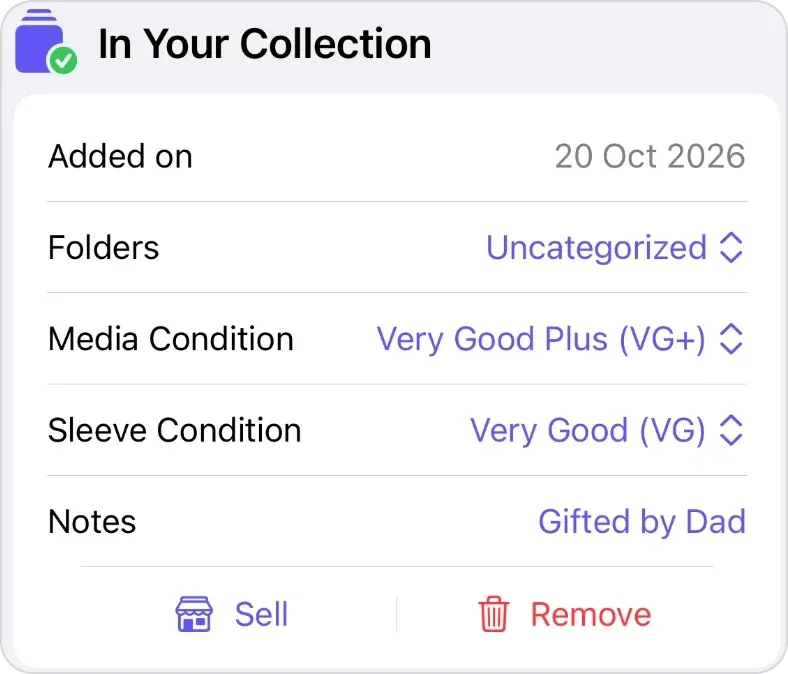
In Your Collection on a release page: the copy’s grades and notes, with Sell below.
VG vs VG+ vinyl: what’s the difference?
The difference between VG and VG+ shows in both sound and looks. A VG+ record shows light wear from careful use, but Discogs’ grading resource says it should, in theory, sound the same as Near Mint. A VG record has lost much of its gloss and has surface noise you can hear in quiet passages, intros and fades, though the music stays on top.
| Check | VG+ | VG |
|---|---|---|
| Surface | Mostly glossy, with faint scuffs or hairline marks | Duller, with visible groove wear |
| Scratches | Too light to feel | Light scratches you can feel with a fingernail |
| Sound | Clean; any marks are silent | Surface noise in quiet passages; some scratches may tick |
On Discogs’ definition, a defect you can hear rules out VG+, however clean the rest of the record looks.
Hypothetical example: Lanternfield Avenue by Orla Pennick, catalog number QMR-517 on Quillmere Records, is an invented LP. Suppose one copy shows this:
| Where | Defect | Points to |
|---|---|---|
| Side A | Two faint scuffs, silent when played | VG+ |
| Side B | A scratch across B2 you can feel with a fingernail; it ticks for about ten turns | VG |
| Sleeve | Slightly turned-up corners and a half-inch split on the bottom seam | VG+ |
The ticking scratch sets the record’s grade: Media VG, Sleeve VG+. The note reads: “Play graded, both sides. Side A: two faint scuffs, silent. Side B: a scratch on B2 ticks for about ten turns. Sleeve: slightly turned-up corners, half-inch bottom seam split. Printed inner sleeve included.”
Visual grading vs play grading: which should you trust?
Trust a play grade more: it checks how a vinyl record sounds as well as how it looks, while a visual grade only predicts the sound. Visual grades are quicker, common and fine if you say so. Discogs’ grading resource asks sellers to inspect each item and, in most cases, to play it.
Goldmine explains that dealers grade visually because they have more stock than they could play, and that groove wear is subtle, unlike scratches and warps. In its experience, LPs from the 1950s to about 1971 tend to play better than they look, and newer LPs up to 1989 worse.
Use each where it fits:
- Cataloging your own collection: mark a visual grade “visual grade, not yet played”, and update it once you play the record.
- Selling or trading: play grade the record, or say what you didn’t check, such as “A1 and B3 played; rest not played”.
- Buying in a shop: grade by eye and allow for the gap; our checklist for buying used records covers that quick inspection.
How do you grade a record sleeve?
Grade a record sleeve on the same scale as the record, but on its own, after checking every panel, seam and corner in good light. List the inner sleeve and inserts separately: a missing poster or lyric sheet matters to many buyers.
Look for these, noting where each one sits:
- Ring wear: a pale circle where the record has rubbed through the print.
- Seam splits: the bottom seam is the most vulnerable. Goldmine allows a split under an inch there at VG+; longer splits, or splits on several sides, mean VG or lower.
- Creases and corners: creases across the artwork, bent or crushed corners.
- Writing, stickers and tape: names, price stickers, residue and repairs.
- Cut-out marks: a punched hole, clipped corner or saw cut marking discounted overstock. Goldmine never grades such a sleeve Near Mint, though it can still be VG+.
- Water damage: rippled card, tide marks and mildew; on a gatefold, check the inside spread too.
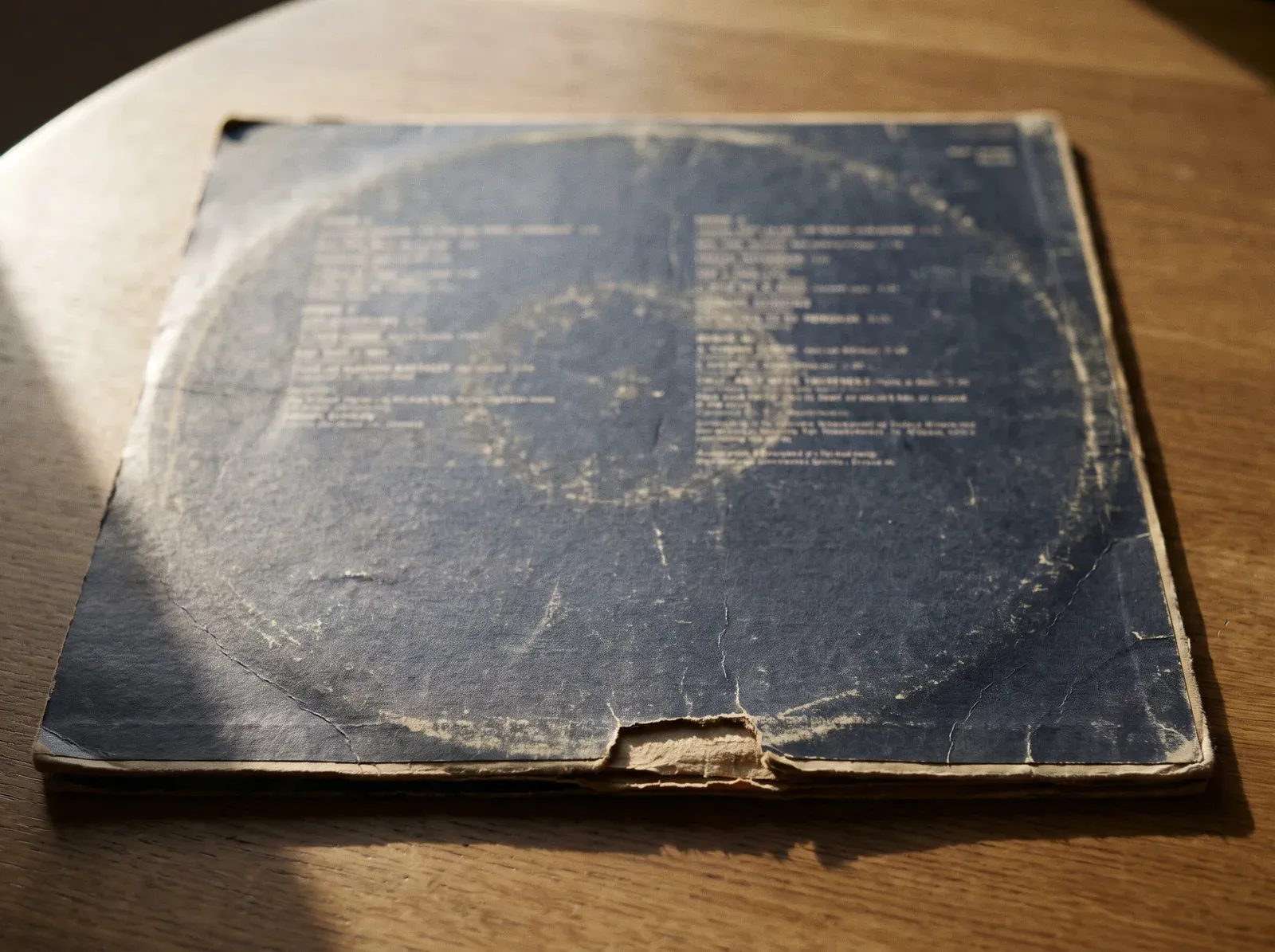
The illustration below shows ring wear and a long bottom seam split, along with creases and worn corners, so you can see what each looks like and where it sits. It isn’t a grading reference, and its split is longer than the one-inch limit Goldmine sets for VG+: grade your own sleeve against the definitions above.
A plain or company sleeve not made for the release is what Discogs calls a generic sleeve; it needs no grade, so describe it in your comments. In the VinylBox listing form, you can also mark a sleeve as Generic, Not Graded or No Cover.
How do you keep track of record grades?
Keep each grade with the vinyl record it describes, in your Discogs collection, where each entry has its own Media Condition, Sleeve Condition and Notes. VinylBox shows them under In Your Collection on the release page of each vinyl record and CD you own, and syncs changes both ways.
Grade a big collection a shelf at a time. In My VinylBox, Collection Maintenance rounds up the vinyl records and CDs still missing a sleeve or media condition, so you know how many are left.
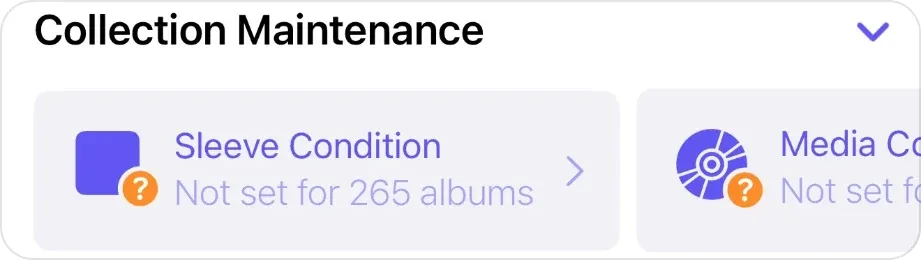
Once your vinyl records and CDs are graded, filter the collection by condition to find copies worth upgrading. For the rest of your catalog, see our guide to cataloging a record collection.
How do you list a graded record on Discogs?
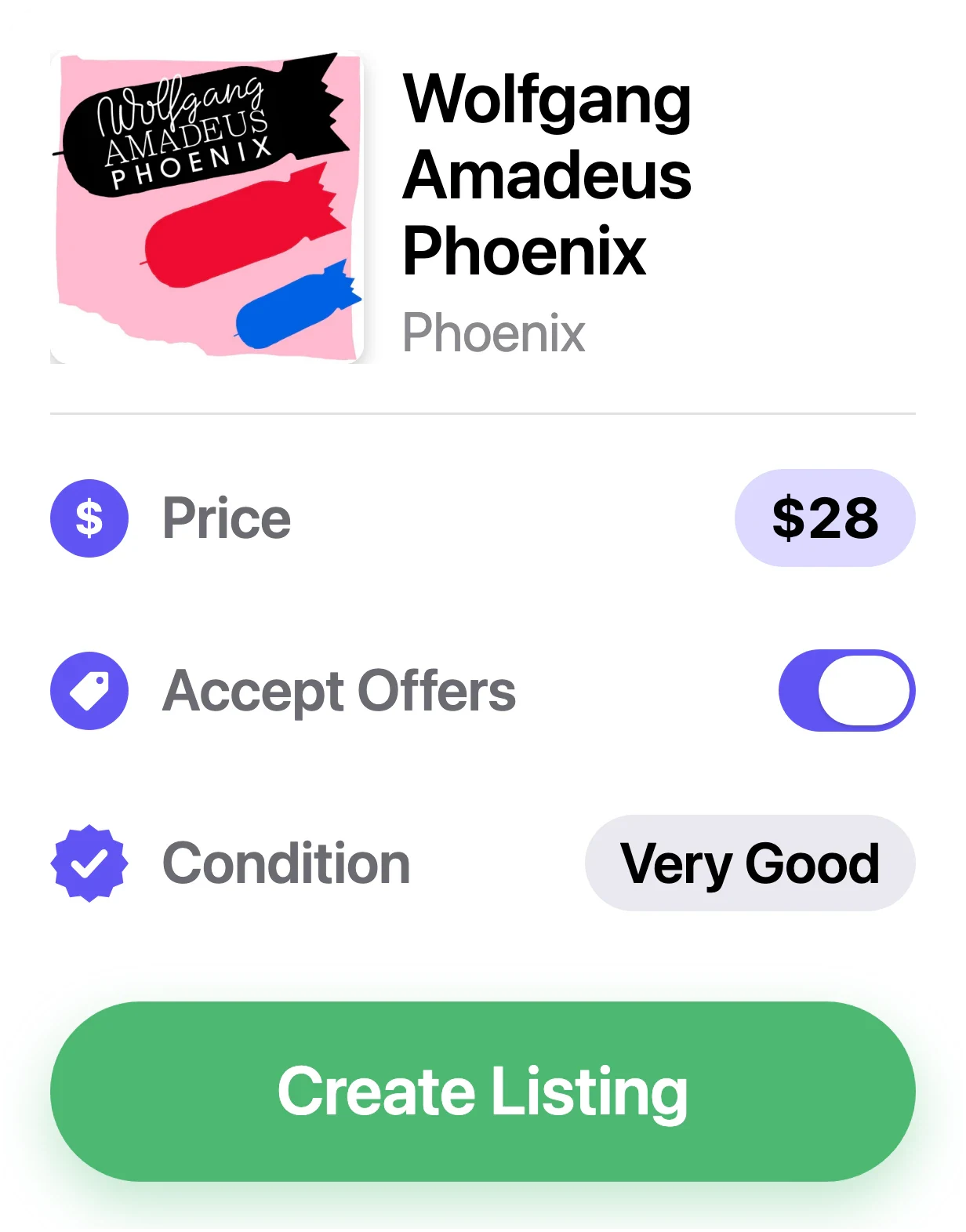
List it against its specific release, with your media and sleeve grades and comments that explain them. In VinylBox, the listing starts from the grades and notes you’ve saved with your copy.
-
Open the listing form from your copy. On the release page or in the scan sheet, tap the green Sell under Est. Value or the Sell under In Your Collection. Either one opens the New Listing form with your copy’s saved Media Condition and Sleeve Condition carried over.
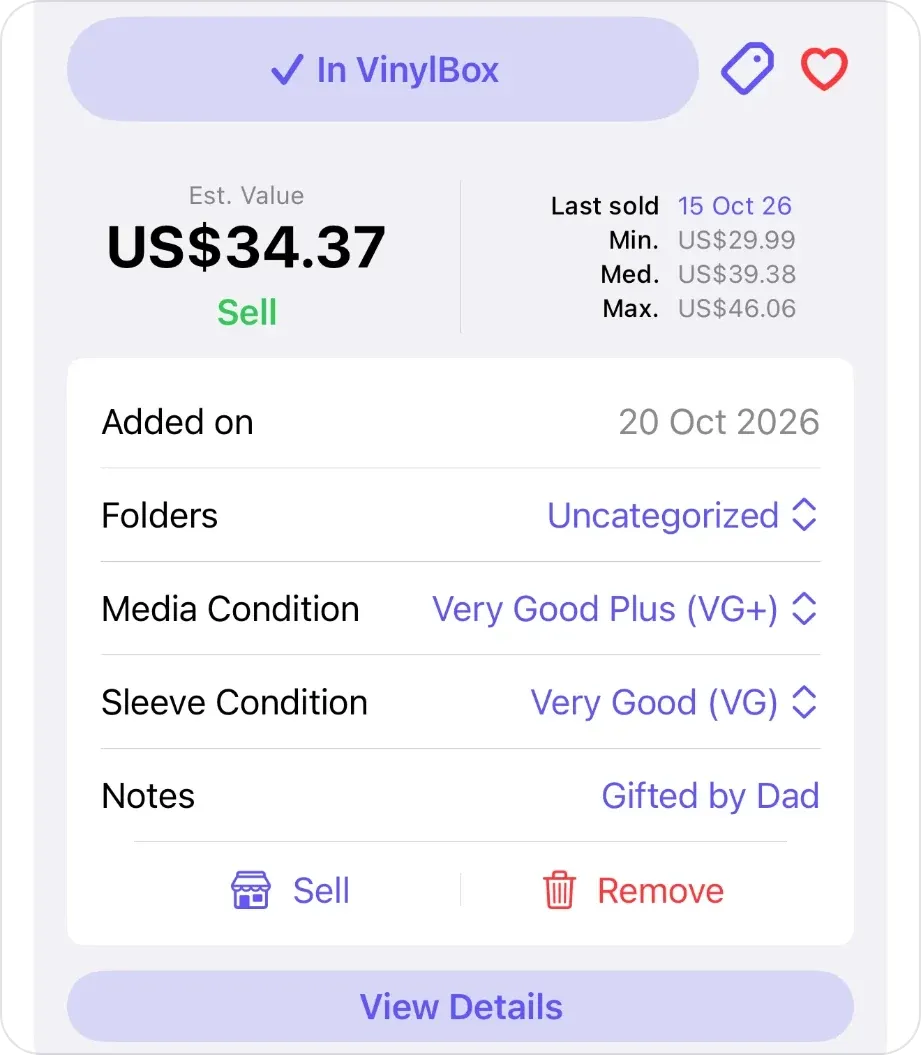
Both Sell buttons in the scan sheet: the green one under Est. Value and the one beside Remove. -
Check Condition and Sleeve Condition. Condition is the record’s grade, from your Media Condition; Sleeve Condition is optional. Unsure? Tap “Need help grading your items?” just below them.
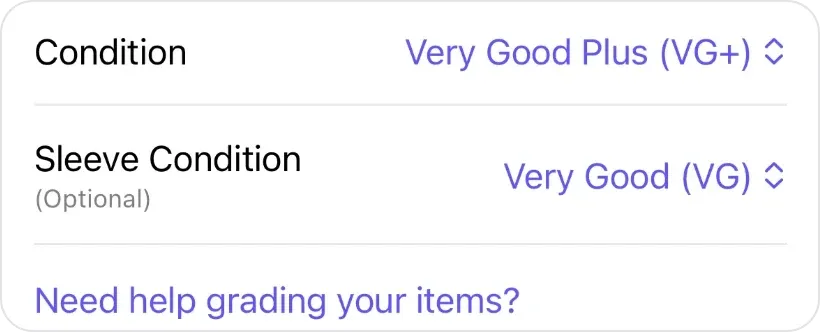
Condition and Sleeve Condition in the listing form, with the grading help link. -
Describe the defects for buyers. Your notes arrive as private comments, which only you see, so copy the defects into the comments for buyers, such as a sticker on the sleeve or a light scuff on side B, and say whether you played the record.
The Suggested Price follows the condition you pick; Discogs prices explained shows how to check it against sales in that grade. Publishing the listing requires VinylBox Pro, from just $1.99/month, which also adds a Suggested Prices view on release pages with Discogs’ suggestion for every grade, here for a 2 x 180 gram reissue of Random Access Memories:
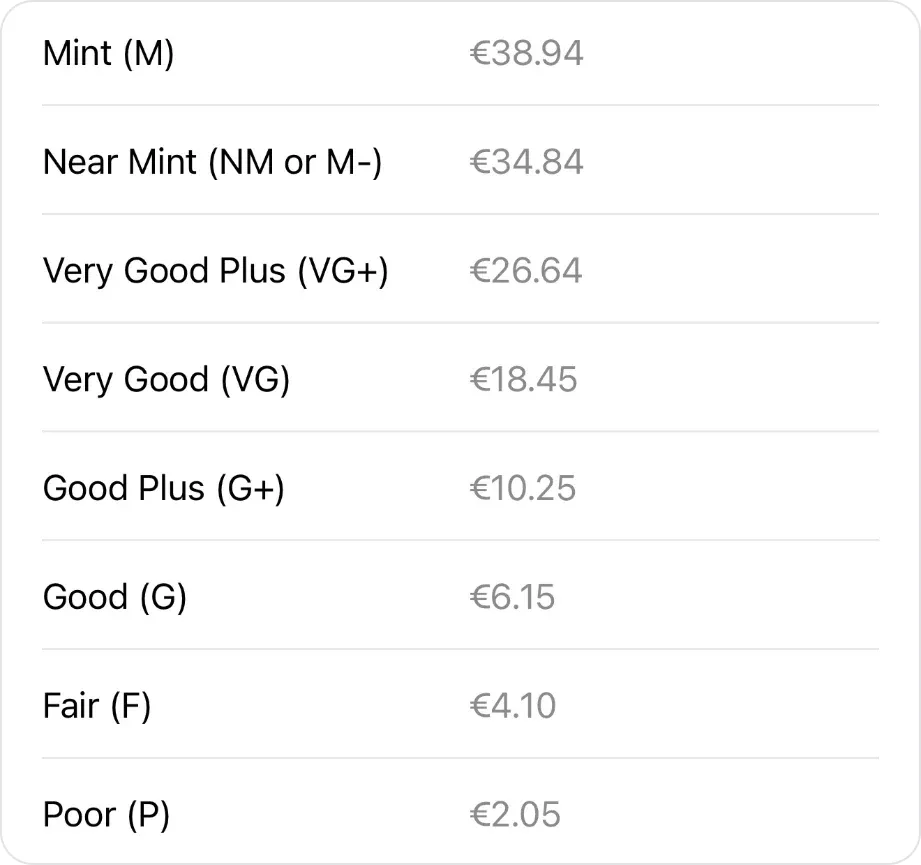
Discogs selling fees apply too, so set your price with them in mind. See how to sell vinyl records and CDs on Discogs from your iPhone.
Frequently asked questions
What does VG+/VG mean in a record listing?
It’s two grades, one for the vinyl record and one for its sleeve. Goldmine notes that most LPs are sold with two grades, but the shorthand doesn’t say which comes first, so check the listing or ask the seller. Discogs avoids the guesswork with separate Media and Sleeve fields. Write “Media VG+, Sleeve VG” yourself; VinylBox stores them as Media Condition and Sleeve Condition.
Is a sealed vinyl record Mint?
Not necessarily. Discogs notes that an item can be sealed and not Mint, and Goldmine warns that a sealed record may have been resealed, may not be Near Mint inside, or may even hold the wrong record. Grade the sleeve you can see through the shrink wrap, leave Media Condition unset in your collection and write “Sealed, not played” in Notes; Collection Maintenance will keep counting the copy as ungraded until you open and grade it. A Discogs listing needs a media grade, so choose one you can stand behind and say in the comments that the record is sealed and uninspected.
Should you clean a vinyl record before grading it?
Yes, if dust or grime hides the surface. Discogs suggests cleaning vinyl records before grading so you can tell smudges from scratches, and dirt can add noise that isn’t damage. Cleaning won’t remove a scratch or groove wear, so grade the record once it’s clean and dry.
How do you grade a CD?
Use the same scale: Media Condition is the disc, and Sleeve Condition is the booklet, inlay and other printed parts. Hold the disc by its edge and center hole, as the Library of Congress advises, check both sides, especially the label side, where a scratch can damage the data layer just beneath, then play it through. On Discogs’ scale, a VG+ disc has a few minor scuffs, a VG disc quite a few light scuffs or several deeper scratches. Standard jewel cases aren’t graded. See how VinylBox catalogs CDs.
Which app can I use to record vinyl record grades?
VinylBox, an independent iPhone and iPad app that works with your Discogs account, records Media Condition, Sleeve Condition and Notes for each copy, synced with your Discogs collection. Collection Maintenance rounds up vinyl records and CDs still missing a grade, and your grades come across into a Discogs listing when you sell (publishing requires VinylBox Pro, from just $1.99/month, and Discogs fees apply). VinylBox is free to download on the App Store, with a free plan to get started, perfect for smaller collections.
Pick one vinyl record you know well and grade it: light, look, listen, then write down both grades and why. Download VinylBox, sign in with Discogs and save them with the copy.