Identify vinyl records and CDs
How to identify a vinyl pressing


On this page
To identify a vinyl pressing, match the record in your hands to one specific release on Discogs. Start from the cover or barcode, narrow the versions by format, country, year and label, and search them for your catalog number. Then compare the labels and the runouts on both sides. The release whose details all agree with your copy is your version, and its runouts can narrow it to a pressing.
VinylBox, an independent iPhone and iPad app for vinyl records, CDs and cassettes that works with your Discogs account, brings those steps together. It scans the cover or barcode, lists the matching Discogs releases with any Matrix / Runout values Discogs has for each, filters and searches them by catalog number, and saves the version you confirm to your collection or Wantlist.
Download VinylBox for iPhone and iPad
Release, pressing or master release: what’s the difference?
Collectors often say “pressing” for the edition they own, but Discogs separates four things:
- Album: the music and title, whatever the edition.
- Master release: a Discogs page that groups an album’s versions (Discogs master release guidelines).
- Release: one edition, set apart by label, catalog number, country, format and identifiers. It is what you add to a collection or Wantlist.
- Pressing: one production run of a release. Two runs can differ only in their runouts.
So identify the release first, then read the runouts when the production run matters. Estimated values, sold prices, Marketplace listings and Wantlist entries all belong to a release, not to the album.
How to identify a vinyl pressing, step by step
Work from broad details to small ones, and let the labels and runouts decide.
Step 1: Gather the record, sleeve and inserts
Put the disc, sleeves and inserts together, and note what you can read before you search.
| Clue | Where to look | What it tells you |
|---|---|---|
| Catalog number | Spine, back cover, both labels | The label’s reference for the edition |
| Label design | Logo, colors, address, text around the label’s edge | Which issue or market the disc belongs to |
| Barcode | Back cover or sticker | A fast match on newer releases |
| Country text | “Made in”, distributor lines | Clues to the market and manufacturer |
| Format details | Disc count, speed, color, mono or stereo | Rules out whole groups of versions |
| Runouts | Dead wax, the smooth band by the label, on sides A and B | Separates pressings that look identical |
Discogs’ guide to finding information on a vinyl record shows where these clues sit.
Step 2: Scan the cover or barcode
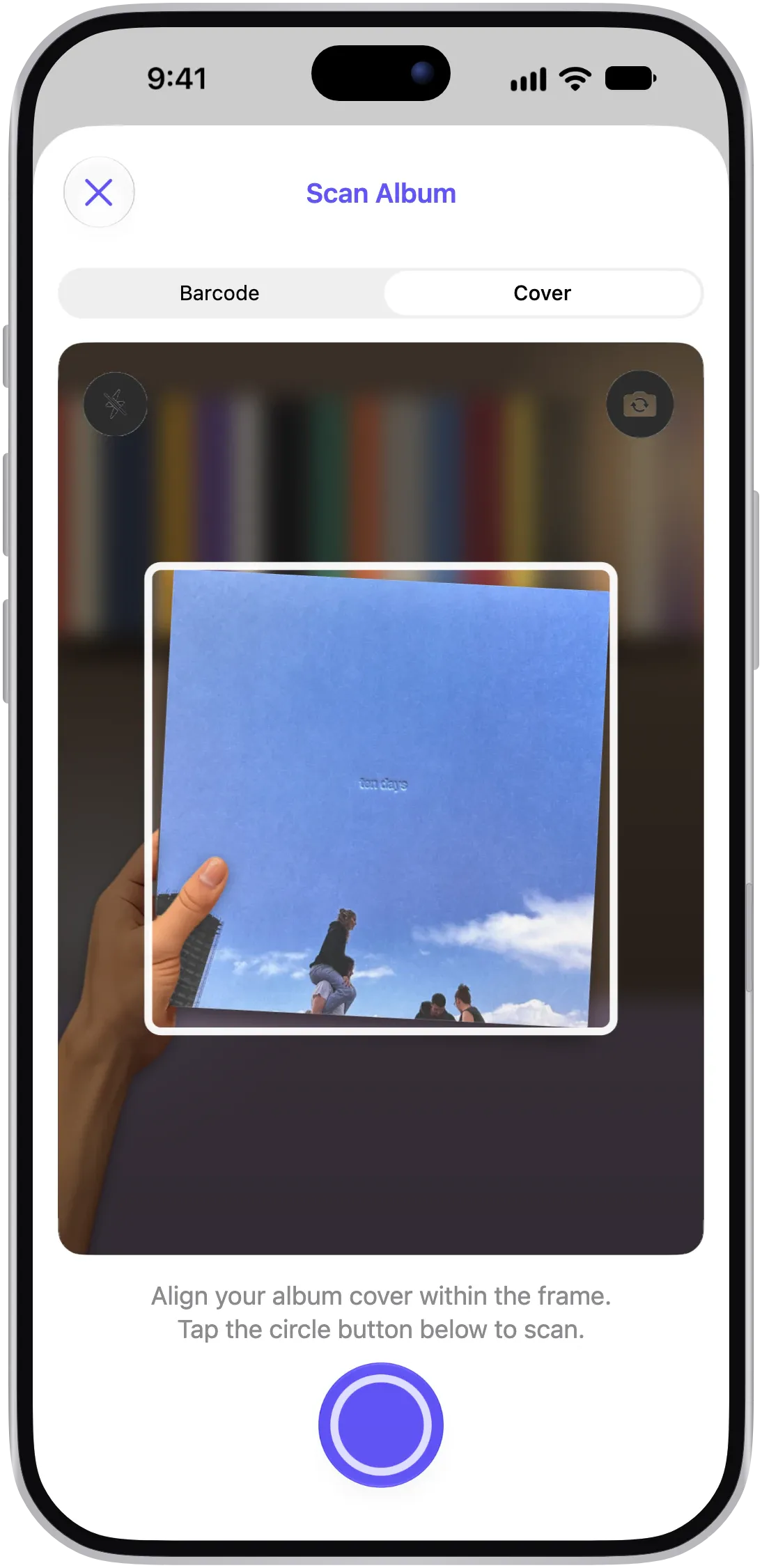
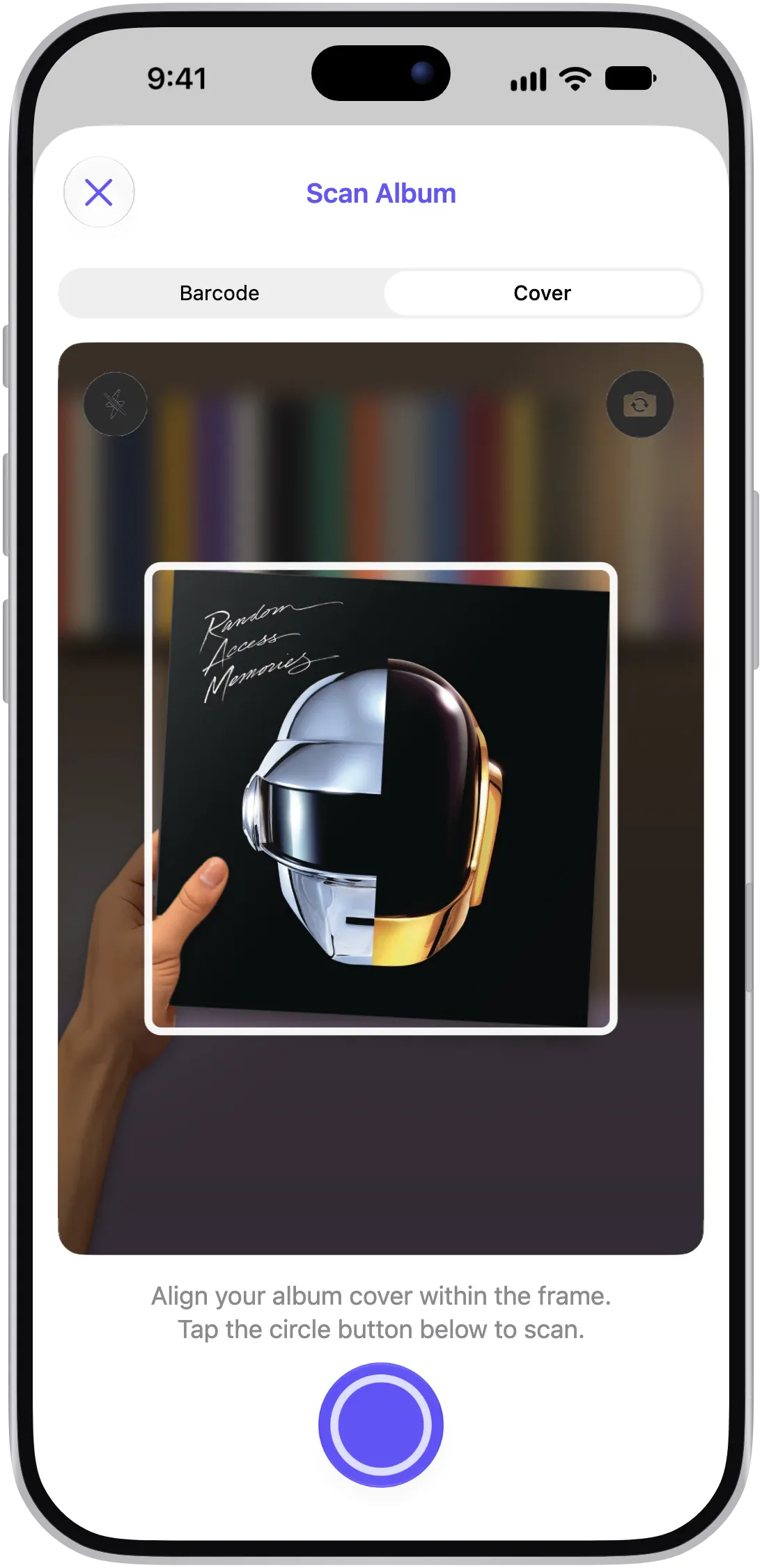
Download VinylBox, open the scanner and choose a mode. Barcode is usually the quicker match when the sleeve has one, though several releases can share a barcode. Cover mode suits older sleeves: line the front up in the frame, tilt it until the glare is gone, then tap the circle button.
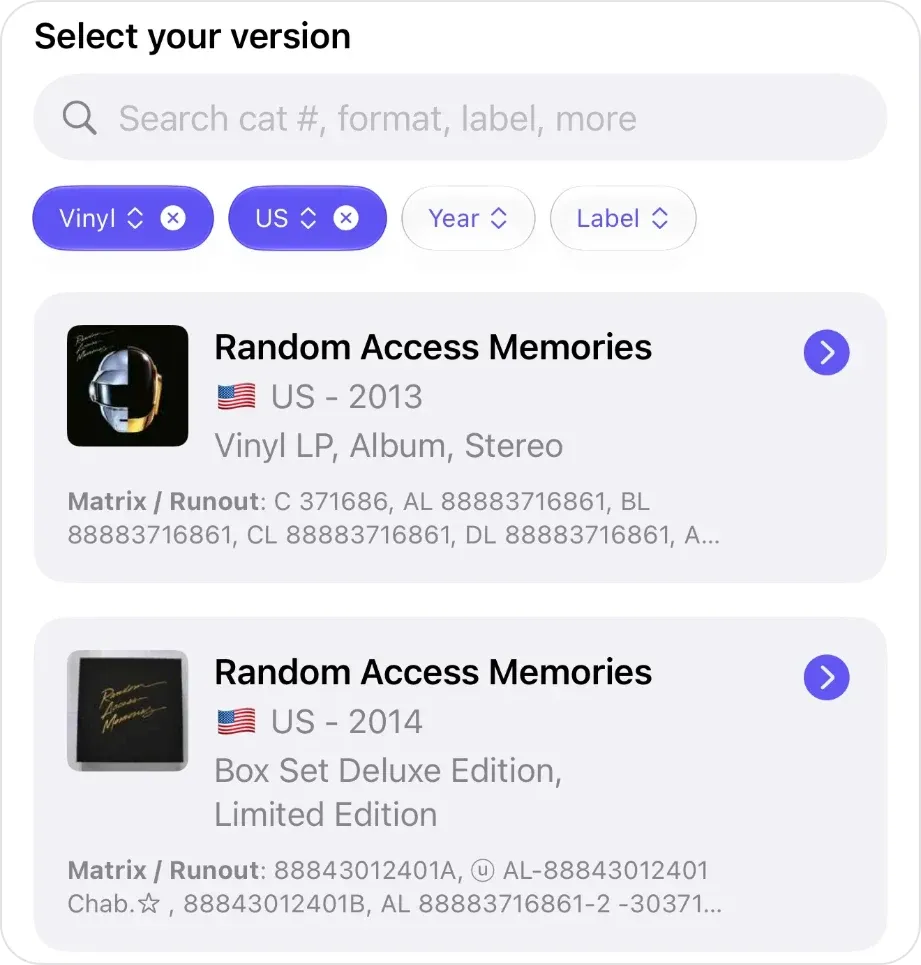
The candidate releases appear under “Select your version”, each with its country, year, formats and Matrix / Runout values. If a scan finds nothing, search by artist, title or label. See how the VinylBox record scanner works.
Step 3: Filter by format, country, year and label
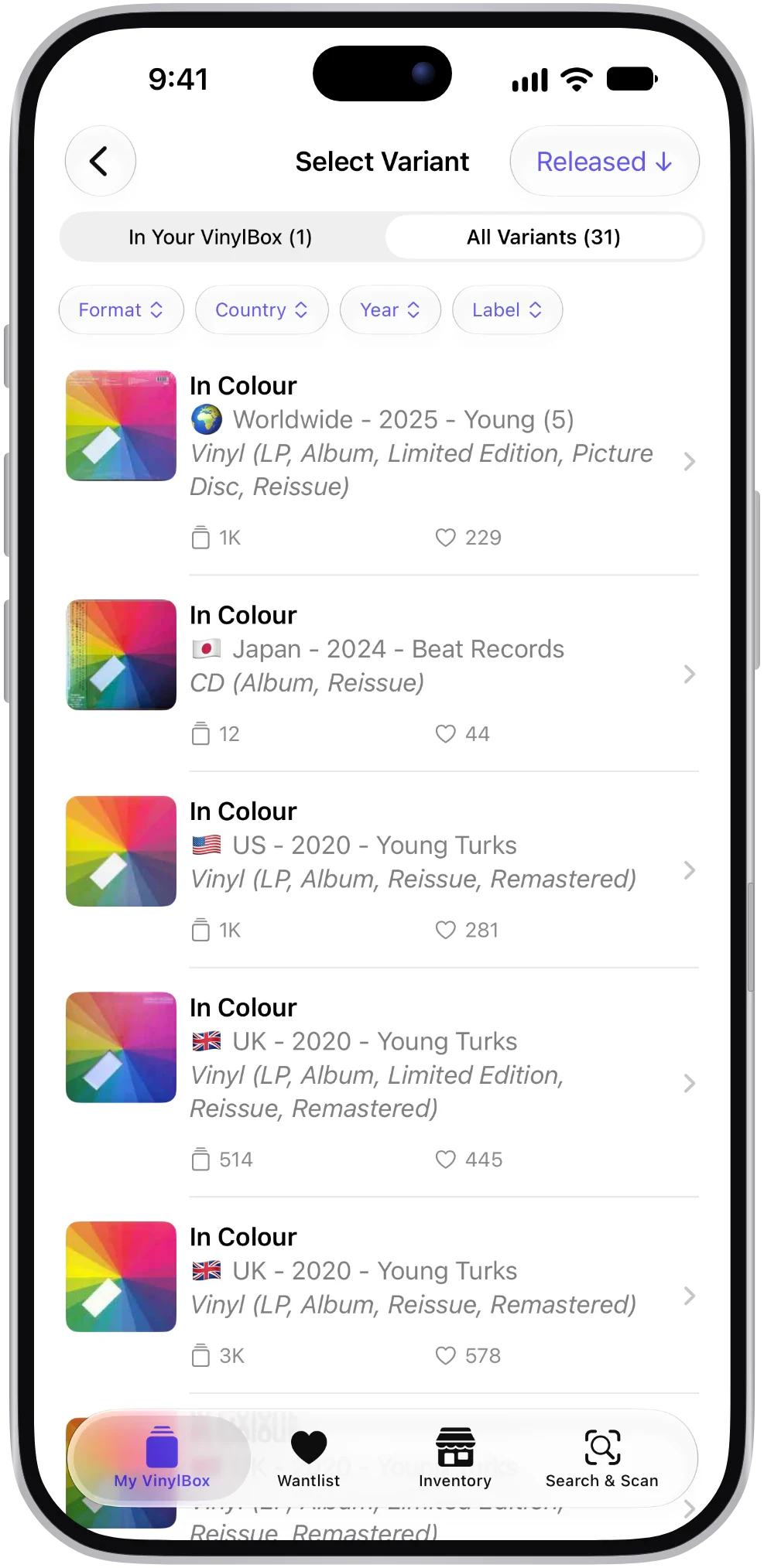
Use the filter chips above the results to remove the versions your record rules out. Start with the format, such as Vinyl, then add the country, year or label as you confirm each one on your copy.
Filter only on what you can read. On Discogs, country means the market a release was sold in, not where it was made (Discogs country guidelines). And reissues can keep the original copyright date, so leave the year filter off if in doubt (Discogs release date guidelines).
Step 4: Search the results for the catalog number
The catalog number usually cuts a long list down to a handful. Type the number printed on your spine or label into the search above the results: VinylBox matches catalog numbers and runouts, highlights what matched, and shows each result’s catalog number.
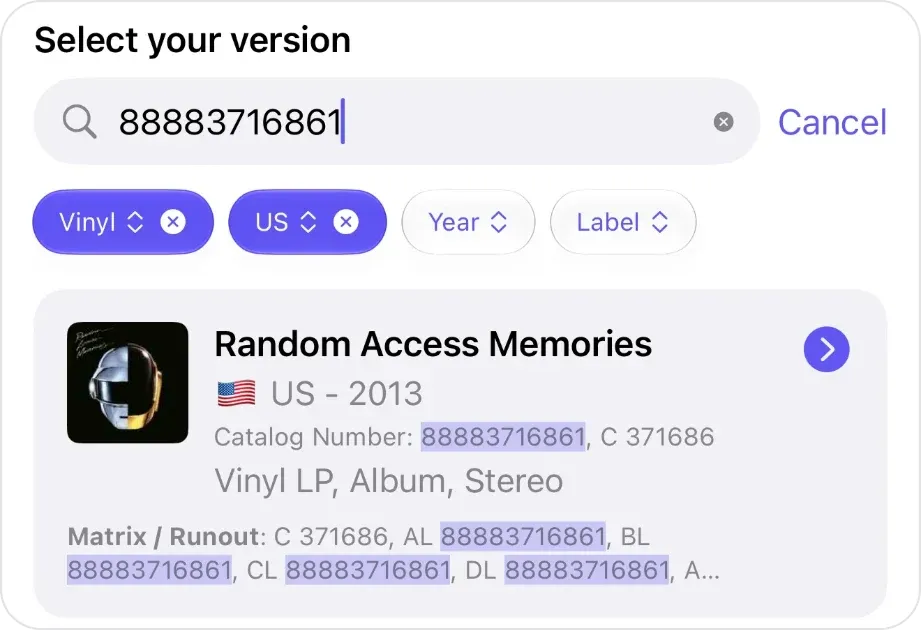
If nothing matches, try just the distinctive part, leave off a side suffix, or try both the sleeve and label forms.
Step 5: Compare labels, sleeve and runouts
Each VinylBox result lists the Matrix / Runout values Discogs has for it, so you can check them against your dead wax (see how to read a runout below). Open a result to see its full runout list and its barcode. Runouts appear only where a contributor has added them, but they often decide between pressings that look identical.
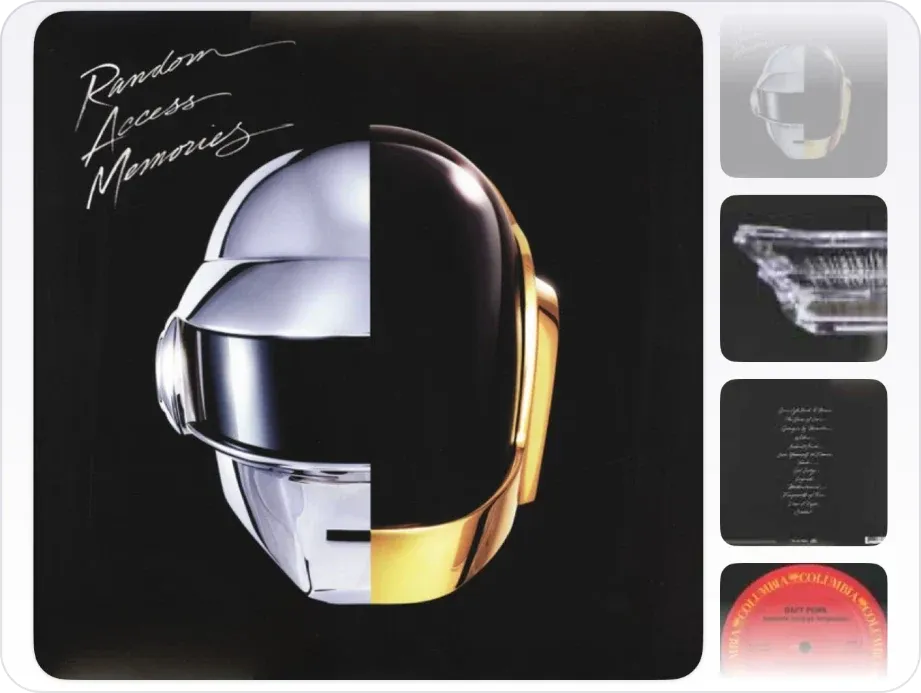
For the labels and sleeve, tap View Details at the bottom of an open result. The release page that opens shows its photos from Discogs, often including the back cover and center labels, to compare with your copy.
Step 6: Confirm the release and save it
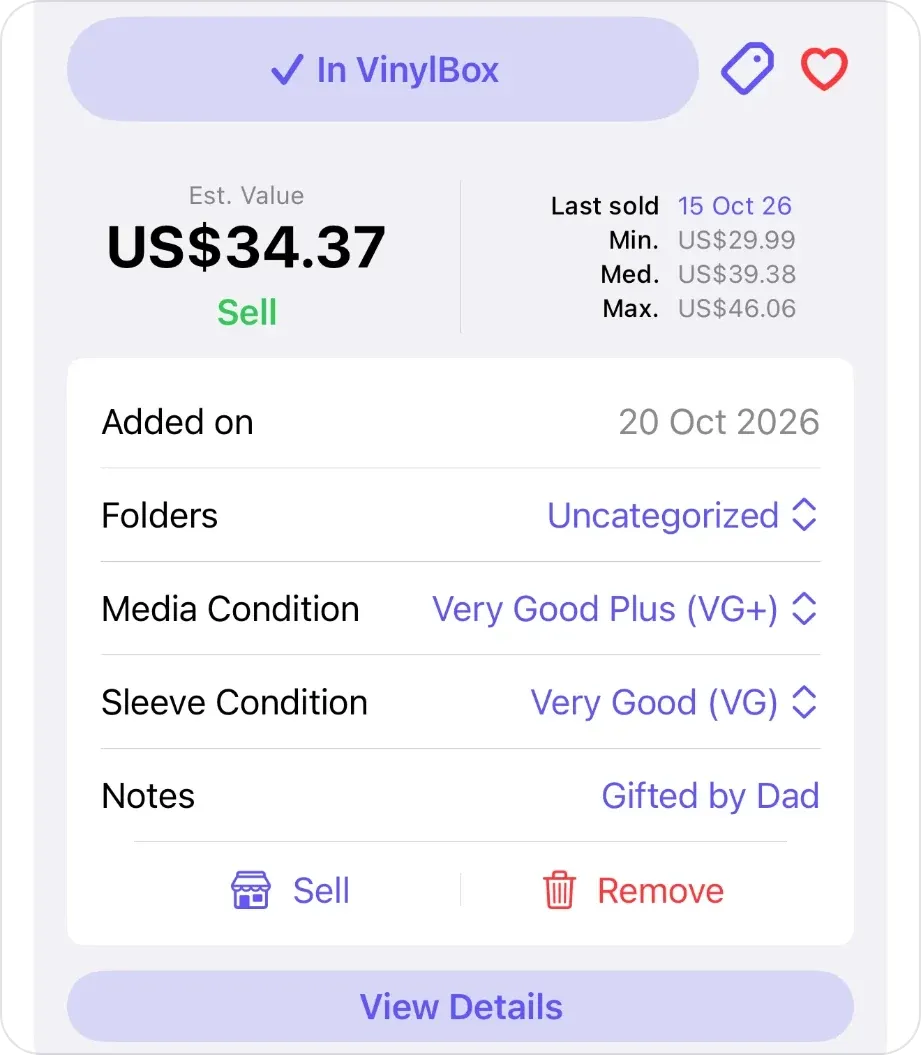
Once one candidate has no unexplained conflicts, save it. VinylBox scans without an account; to save, sign in with Discogs in the app, and your collection syncs. New to Discogs? Create your account from VinylBox’s sign-in screen. Add the release to your collection from the scan sheet or its release page, and the button reads “✓ In VinylBox”. In the scan sheet, set the folder, the media and sleeve condition, and a note, such as who gave you the record.
What does the catalog number on a vinyl record mean?
A catalog number is the label’s own reference for a release. Discogs describes it as usually the most prominent number on a release, often printed on the spine, the back cover and the label (Discogs catalog number guidelines).
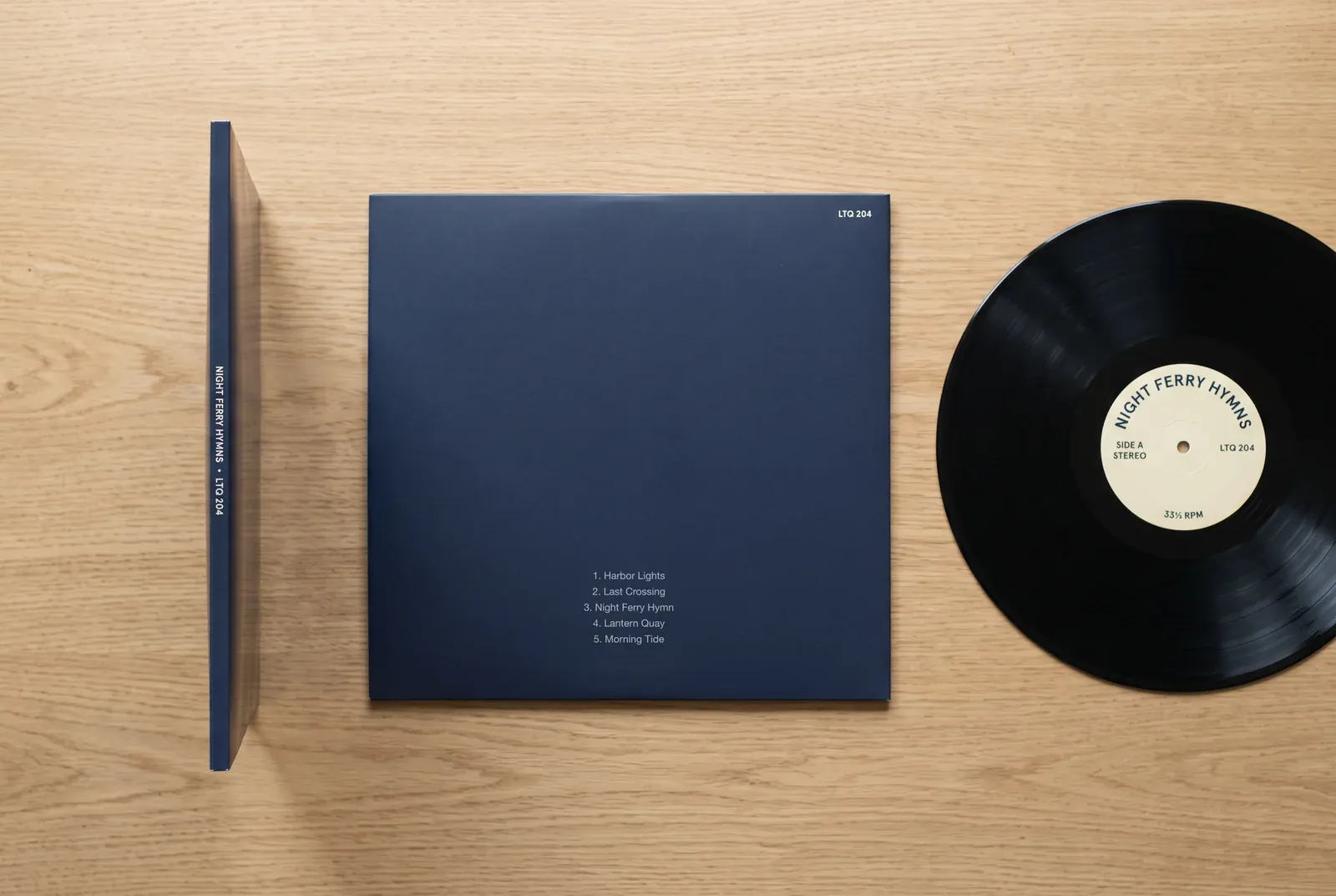
It is not a barcode, nor a label code (the “LC” number on many European releases), nor the matrix number used in manufacturing, which is sometimes the catalog number plus a side identifier, such as LTQ 204-A2 on side A of the same fictional LP. A catalog number narrows the field but often doesn’t settle it: represses and some overseas editions keep the same number, and reused artwork can still show an old one.
What is the runout or matrix number on a vinyl record?
A record’s matrix or runout number is the code stamped or etched into the runout, or dead wax: the smooth band between the last groove and the center label. It tracks manufacturing and marks each side, and the runout can also carry engineer or studio initials and manufacturer marks, according to Discogs’ identifier guidelines.
To read a runout, tilt the record under a lamp until the characters catch the light. Copy each side separately, as written, keeping capital letters, symbols and crossed-out characters, and write any gap as a single space, as Discogs does. Photograph faint marks and write “1 or I?” rather than guessing.
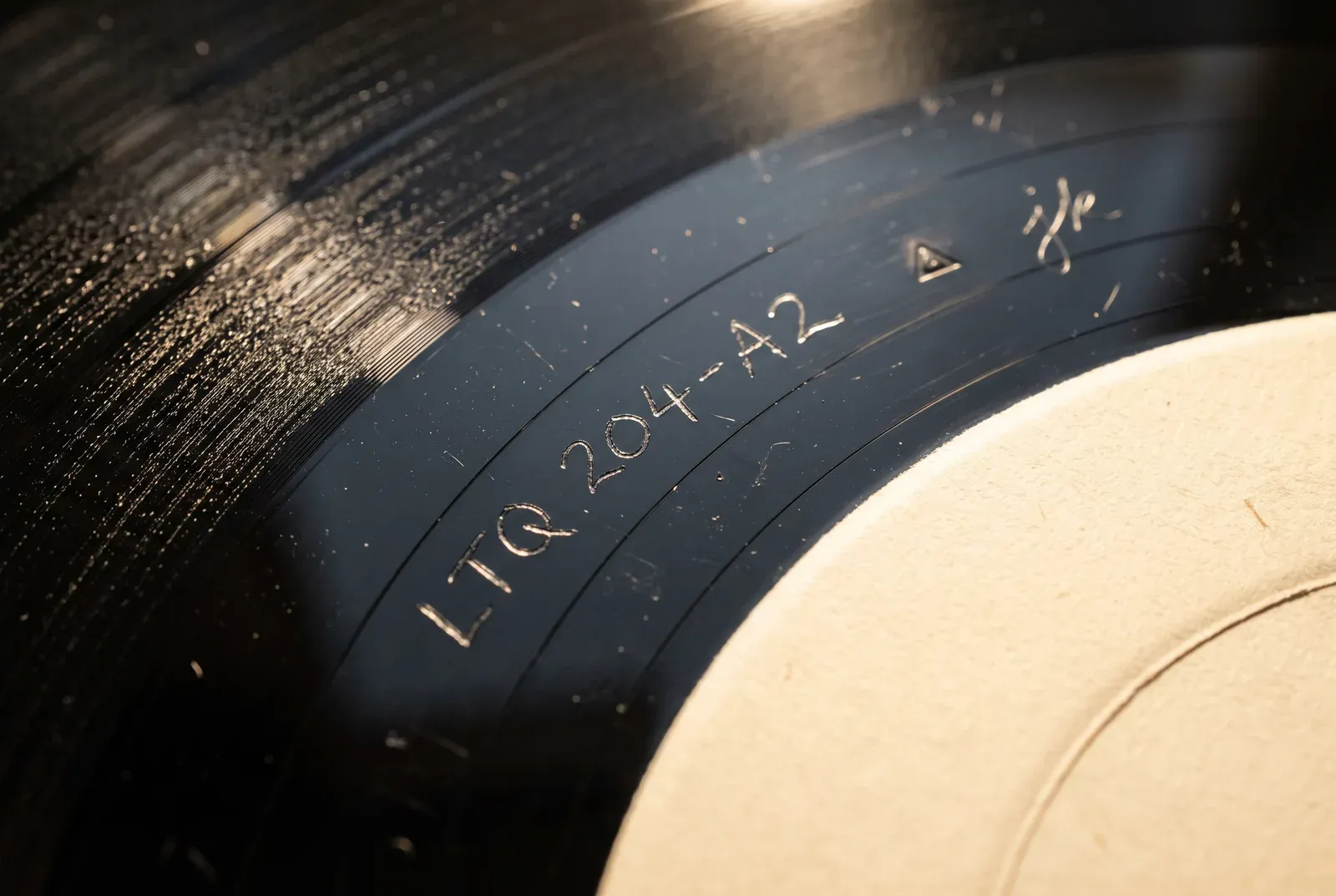
Then compare the whole string with each result’s Matrix / Runout values. One release can list several runout variants: a different stamper (the metal part that presses each side) or matrix number alone doesn’t make a new release, but a different pressing plant or mastering engineer can (Discogs general rules).
How to tell if a vinyl record is a first pressing
A first pressing is a copy from the earliest production run of an album’s original release, usually qualified by country, as in a US first pressing. A matching cover proves nothing, because reissues often reuse the original artwork.
Finding the original release on Discogs is necessary but not enough: as above, one release can cover early and later runs, and its runout variants are numbered in the order contributors added them, not the order of pressing. Unless the release notes or experienced collectors say which runout came first, call your copy the original release, not a first pressing, especially when you buy or sell.
These clues usually rule a first pressing out:
- A printed barcode on an album first released before 1979. Discogs notes that a release with a barcode generally cannot predate 1979 (Discogs identifier guidelines).
- A label design, logo or address adopted later than the one in the original release’s label photos.
- A different catalog number or prefix from the original release for that country and format.
- Reissue wording on the sleeve or labels, such as “reissue” or “remastered”.
Tag a confirmed first pressing with the tag button beside “✓ In VinylBox”, choosing or creating a tag such as First Pressing, to find it again.
How to choose between pressings that look the same
When candidates stay close, mark each clue from Step 1 as a match, a conflict or unknown for every candidate. Choose a release only when it has no unexplained conflicts, and treat unknown as unknown, not as a match.
Hypothetical example: Night Ferry Hymns is the invented LP from the illustrations above, catalog number LTQ 204. Your copy is black vinyl with stereo labels, and its side A runout reads LTQ 204-A2, then a stamped triangle and the initials jk.
| Check | Candidate A | Candidate B | Candidate C |
|---|---|---|---|
| Catalog number | Match | Match | Match |
| Mono or stereo | Conflict: mono | Match: stereo | Match: stereo |
| Label address | Match | Match | Conflict: later address |
| Runout, side A | Unknown: not listed | Match: a listed variant | Conflict |
Candidate B is the only one with no conflicts, so it is the release to save. If every candidate keeps a conflict, note the precise question, such as “labels agree, side B has an extra symbol”, and ask in the Discogs forums, signed in with the account you use in VinylBox.
After you identify it: save, tag and check the value
- Collection: once you sign in with Discogs in VinylBox, your collection, folders and Wantlist sync both ways, and your collection stays available offline. Read how VinylBox works with your Discogs collection.
- Condition and notes: set them in the scan sheet, or later on the release page; our guide to grading vinyl records explains each grade. Collection Maintenance rounds up vinyl records and CDs still missing a condition or folder.
- Folders and tags: file records by shelf, crate or genre, and tag the special ones; our guide to organizing vinyl records compares filing systems. For a whole shelf, follow our guide to cataloging your vinyl records and CDs.
- Wantlist: in a shop, tap the heart on the version you want to add it to your Wantlist. Before you pay, run through our checklist for buying used vinyl records.
- Value: the result and its release page show that version’s Est. Value, the date it last sold and its minimum, median and maximum sold prices, when Discogs has sales to go on. Tap Last sold to open its Discogs sales history, with each sale’s date, grades, price and seller’s comments, without leaving VinylBox.
Values are estimates based on Discogs data, and they describe the release, not your copy: a VG copy won’t fetch a Near Mint price. Because one release can cover early and later runs, read the sellers’ comments in that sales history for your runout before you price a sought-after early copy.
Discogs prices explained turns the figures into a range for your copy, and how VinylBox record values work covers the value panel. To sell a spare, tap Sell under Est. Value to list it on the Discogs Marketplace with your copy’s grades already in the listing form; Discogs fees apply, and publishing listings requires VinylBox Pro, from just $1.99/month.
Frequently asked questions
Is there an app that identifies vinyl pressings?
Yes. VinylBox, an independent iPhone and iPad app that works with your Discogs account, scans a record’s cover or barcode, lists the matching Discogs releases and lets you compare their listed runouts and photos, often including the labels, with yours. VinylBox is free to download on the App Store, with a free plan to get started, perfect for smaller collections.
How do I find my pressing on Discogs?
Download VinylBox and scan the cover or barcode: it lists the matching Discogs releases, which you can filter by format, country, year and label and search by catalog number or runout. Tap View Details on a result to open its release page, whose photos from Discogs often include the labels and back cover. Sign in with Discogs in the app, or create a Discogs account from its sign-in screen, to save the one that agrees with your copy. On a computer, you can also browse the versions under the album’s Discogs master release.
What if my runout is not listed on Discogs?
Check your transcription of both sides, then read each candidate’s release notes and runout variants. If everything else matches, an unlisted runout is often a variant of that release rather than a missing edition, and you can add it to that release on Discogs.
Is a colored vinyl or white label copy a different release?
Usually, yes. Discogs accepts white labels, reissues, colored vinyl and copies from different manufacturers as separate releases when they can be told apart, and keeps promos apart from the retail release (Discogs general rules). Unintended color variation and different stampers don’t count. In VinylBox, read each candidate’s format details, such as White Label.
Can I identify a CD edition the same way?
Mostly, yes. CD editions are separate Discogs releases too: start from the barcode on the back inlay, then compare the catalog number, the country and the text around the center hole, where the matrix number and, on many discs from the mid-1990s on, an IFPI code help tell editions apart. Our guide to identifying a CD edition walks through it. VinylBox scans the barcodes and covers of vinyl records and CDs alike; read how VinylBox catalogs CDs.
Download VinylBox, pick one record from your shelf and work through it: scan, narrow, compare, then sign in with Discogs and save it. Each pressing you identify makes your collection, and its values, more accurate.