Catalog and organize
How to back up your Discogs collection

On this page
To back up a Discogs collection, export it to a CSV file (Export Collection in VinylBox, or Export My Collection on the Discogs website), put the date in the file’s name and keep copies in two separate places. Then open the file and check it holds the details you rely on, such as folders, condition grades and notes. Repeat after each batch of changes.
VinylBox, an independent iPhone and iPad app for vinyl records, CDs and cassettes that works with your Discogs account, handles the export. Download it, sign in with Discogs and your collection syncs. Then tap Export Collection in My VinylBox, choose what to include and save a CSV file that can also carry your VinylBox tags, which Discogs’ own export can’t include.
Download VinylBox for iPhone and iPad
Why back up a Discogs collection that’s already online?
Because Discogs keeps your collection as it is now, not as it was. It lives online, so a lost phone doesn’t lose it, but each change replaces what was there before, and two-way sync carries that change to every device signed in to the account. A dated file you keep yourself is the copy that remembers.
A backup protects against three things:
- Mistakes that sync. Remove the wrong copy or move a shelf’s worth of vinyl records and CDs to the wrong folder, and the change reaches Discogs and every device. Last month’s file shows how it looked before.
- Details that aren’t on Discogs. VinylBox stores tags and Smart Folders privately in iCloud, synced across your Apple devices but not with Discogs, so only VinylBox’s export can include your tags.
- Losing access. A file you keep yourself, on a drive or a second cloud service, doesn’t depend on your Discogs account or on VinylBox.
Sync Collection, in My VinylBox, isn’t a backup either: it keeps VinylBox and Discogs in step, which is also why a mistake travels. The copy VinylBox keeps on your iPhone or iPad for browsing offline follows the next sync too. See what syncs between VinylBox and Discogs.
What should a Discogs collection backup include?
A useful backup lists every copy you own with enough detail to find the same release again, plus what you’ve recorded about that copy. Some of it lives on Discogs and some only in VinylBox:
| What to keep | Where it lives | How to keep a copy |
|---|---|---|
| The release you own | Your Discogs collection | Either export; VinylBox’s gives Release ID, Album Name, Artists and Year |
| Date added and folder | Your Discogs collection | VinylBox’s export: Date Added, Folder Name, Folder ID |
| Media and sleeve condition, notes | Your Discogs collection | Either export; in VinylBox’s, under Your Fields |
| Tags | VinylBox, privately in iCloud | VinylBox’s export only, with Tags switched on |
| Smart Folders and collection value history | VinylBox, privately in iCloud | Don’t count on either CSV; write down each Smart Folder’s name, description and filters |
| Wantlist | Discogs | The Discogs website’s separate Wantlist export |
| Receipts and photos of your copies | Your own files | The same dated folder as the export |
The release details matter most. Several releases often share an album’s title and cover, so you need the detail that leads back to the version you own. VinylBox’s export gives each row a Release ID, the release’s identifier in the Discogs database, rather than a label, catalog number or format. Our guide to cataloging a record collection covers matching releases.
How to back up your Discogs collection with VinylBox
Download VinylBox, sign in with Discogs inside it and sync, then use Export Collection in My VinylBox to save a CSV file of your whole collection with the details you choose. Spot-check a copy and keep the file in a second place.
-
Download VinylBox and sign in with Discogs. Your collection, folders and Wantlist sync to your iPhone or iPad. New to Discogs? Create a free account from VinylBox’s sign-in screen.
-
Sync first. In My VinylBox, below Collection Maintenance, tap Sync Collection, so the export includes changes made on the Discogs website since the last sync.

Sync Collection beside Export Collection, with the time of the last sync. -
Choose what to include. Tap Export Collection. Under Data to Include, make sure Album Information and Collection Information both read All Included. Collection Information’s switches include Date Added, Folder Name, Tags and Folder ID, the Discogs identifier of each album’s folder, and its Your Fields group holds your Discogs fields, such as Media Condition, Sleeve Condition and Notes.
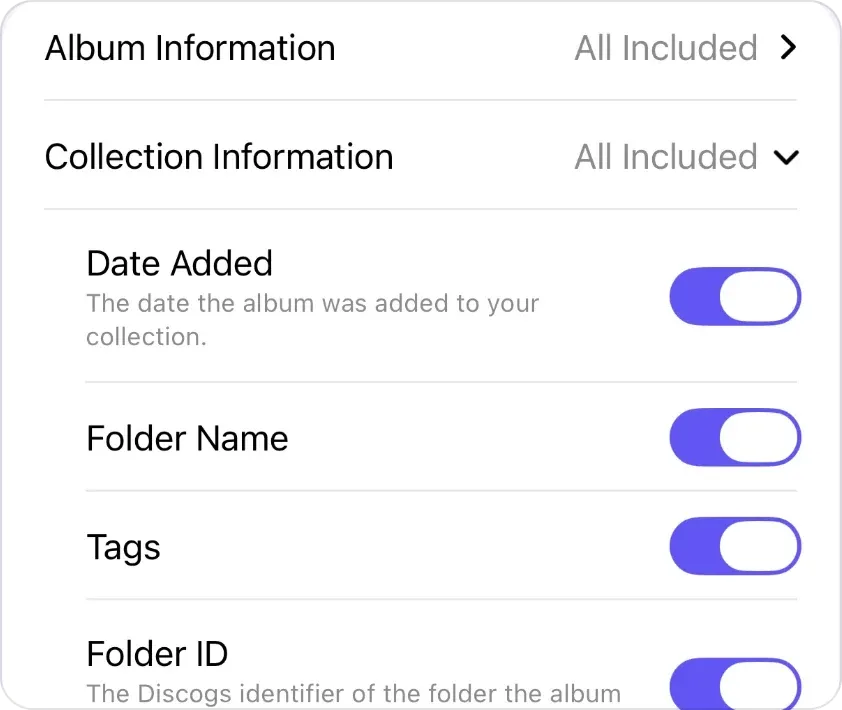
Collection Information’s switches: Date Added, Folder Name, Tags and Folder ID. -
Note the album count. Export Collection always exports your whole collection, and the line above the Export button shows how many albums the file will hold. Note the number for step 6, then tap Export.

The album count above the Export button. -
Save it with the date in its name. Save the CSV file to a backup folder, such as one in iCloud Drive in the Files app, named in year-month-day order, such as
vinyl-collection-2026-10-20.csv, so your backups sort by date. To rename a file, touch and hold it in Files and choose Rename. -
Open a copy and spot-check it. In Files, touch and hold the file, choose Duplicate and open the duplicate in Numbers, Excel or Google Sheets. Each copy gets its own row, so a vinyl record or CD you own twice has two, and the file should have as many rows below the header as the count in step 4. If it doesn’t, tap Sync Collection and export again. Then look up three you know: one with a tag, one in a named folder and one with condition grades or a note. If a column you expected is missing, such as Tags or Folder Name, check Data to Include and export again.
-
Copy it somewhere else, such as an external drive or another cloud service, so one lost device or closed account can’t take both copies.
How to export a Discogs collection CSV on the website
On a computer where you’re already signed in to Discogs, the website can also export your collection as a CSV file. Discogs’ collection help gives these steps (Discogs’ collection guide, checked October 20, 2026):
- Open your collection and, from the settings options at the top right, select Export My Collection.
- On the Export page, choose Collection from the dropdown menu and select Request Data Export.
- A green banner confirms the request is scheduled, and Discogs notifies you when the file is ready to download.
That file can’t include your VinylBox tags. Your Wantlist is a separate export from the same page.
What does a collection CSV export include?
A collection CSV export is a plain-text table of your collection, with details of each release and your copy, that spreadsheet apps open. VinylBox’s export always covers your whole collection, one row per copy, with the details you choose under Data to Include, tags among them; Discogs’ help doesn’t list the columns in the website’s export. Check either file before you count it as a backup.
In VinylBox’s export, Album Information covers the release: Album Name, Artists, Year, Genres, Styles and Release ID. Collection Information covers your copy: Date Added, Folder Name, Folder ID, Tags, Rating and Instance ID, with your Discogs fields, such as Media Condition, Sleeve Condition and Notes, under Your Fields. There’s no label, catalog number or format column, so the Release ID is what ties each row to its release. For a backup, include everything; for a list you’ll share, switch off what you’d rather keep private.
Keep the saved file as it is and edit a copy. Spreadsheet apps can change codes as they open a CSV file: Excel, by default, removes leading zeros and turns large numbers into scientific notation (Microsoft’s guide to leading zeros and large numbers), which can alter catalog numbers and barcodes, in a file that has them, when you save over the original.
Weighing a spreadsheet as your main catalog instead? Read spreadsheet vs Discogs vs VinylBox.
Where should you keep your collection backups?
Keep at least two copies in different places, so one lost phone, failed drive or closed account can’t take every copy. The Library of Congress’s personal archiving advice is to make at least two copies, on separate media, in places as far apart as practical, and to check the files at least once a year.
- First copy: a backup folder in iCloud Drive, reachable from the Files app on iPhone and iPad and from a Mac.
- Second copy: an external drive or another cloud service, so it doesn’t depend on the same account or device.
- Every dated file: don’t overwrite one file called
collection.csv. A CSV file is small, so keeping each dated export lets you go back to the version before a mistake. - Companion files: receipts and photos of signed or special copies belong in the same dated folder.
Treat the files as private: notes can record what you paid and where your vinyl records and CDs are stored.
How often should you back up your record collection?
Export after every cataloging session or batch of new vinyl records and CDs, before any big change, and on a set date, such as the first of each month.
- After adding vinyl records or CDs: new entries, folders and grades are the work you’d least like to repeat.
- Before a reorganization: export before you move vinyl records and CDs between folders, retag a shelf or remove a batch you’re selling. Rearranging the shelves themselves? Our guide to organizing vinyl records pairs well with a fresh backup.
- On a schedule: a repeating reminder on your iPhone covers the quiet months.
- Once a year: open an older file to check it still opens and holds what you expect.
Can you restore a Discogs collection from a CSV?
Not in one step. Discogs’ collection help covers exporting a collection as a CSV file but not importing one, and the website’s CSV import is for Marketplace inventory: it adds, updates and removes listings, and rows without a status are listed For Sale (Discogs’ inventory CSV guide). Use your backup instead as the checklist you rebuild from:
-
Export your collection as it is now, and keep that file too, so you can compare the two.
-
Find what’s missing. Paste both files into one spreadsheet as sheets named Old and New. In Excel or Google Sheets,
=COUNTIF(New!C:C, C2)<COUNTIF(Old!C:C, C2)beside each row of Old shows TRUE when New has fewer rows with that row’s value in column C, so it also catches a lost second copy, as each copy has its own row. Use the column that identifies the release, Release ID in a VinylBox export, replacing C with its letter. Export both files with the same Data to Include so the columns line up. -
Re-add each missing copy in VinylBox. Scan its cover or barcode; if a scan finds nothing, search by artist and title. To pick the right version, look up your file’s Release ID: the release’s Discogs page is at discogs.com/release/ followed by that number, and it lists the catalog number. Type the catalog number into the search under “Select your version”, which matches catalog numbers, runouts and, for CDs, the Mastering and Mould SID codes when Discogs has them. Open the match and tap “+ Add to VinylBox”. Learn more about VinylBox’s scanner.
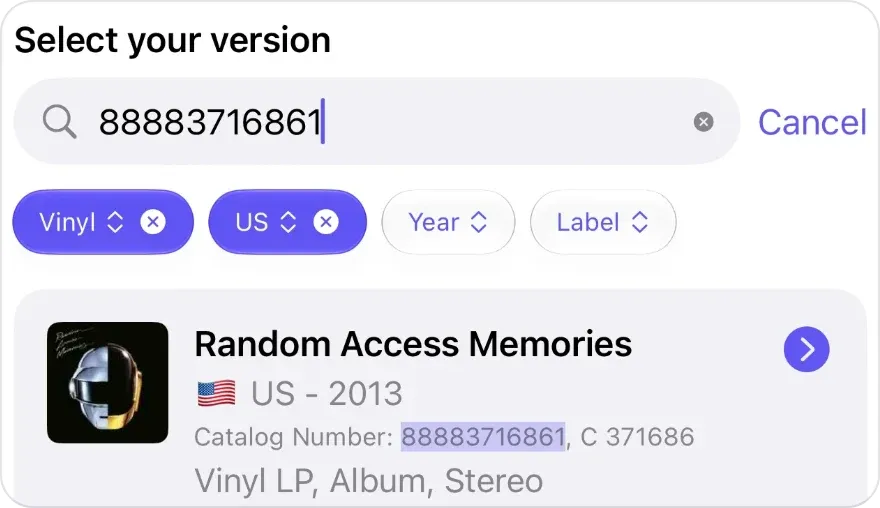
The search under Select your version matches catalog numbers. -
Restore its details from the file: set Folders, Media Condition, Sleeve Condition and Notes in the scan sheet after saving, and add tags with the tag button beside “✓ In VinylBox”, which can also create a tag you no longer have. Added on shows the day you re-add it, so copy the original date into the note if it matters.
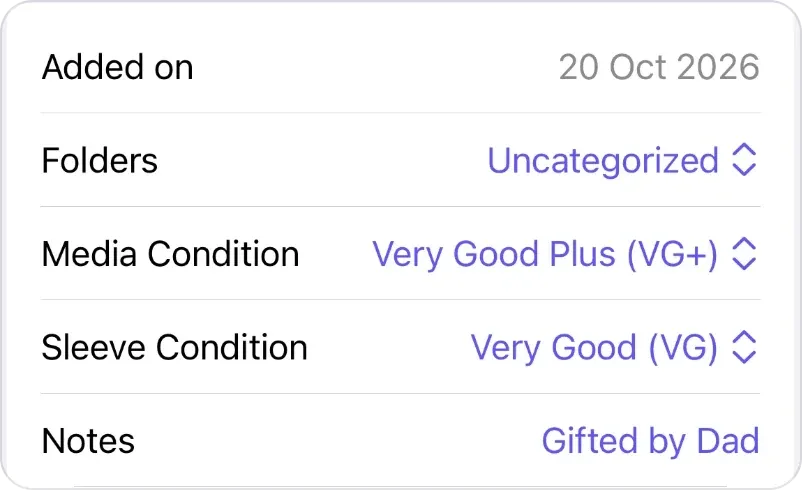
A saved copy’s date added, folder, condition grades and note.
VinylBox has a free plan to get started, perfect for smaller collections. Releases you add from VinylBox count toward the free plan’s limit, so rebuilding a large collection may need VinylBox Pro, an optional subscription from just $1.99/month, which also lets you create unlimited folders and tags.
Hypothetical example: last month’s VinylBox backup has a row for The Lowmarsh Choir, Weathervane Hymnal, 1987, with its Release ID, Date Added March 3, 2026, Folder Name Box 2 and the tag Signed (all fictional), but your collection no longer has it. The Release ID’s Discogs page gives the catalog number, QRS-0417. Scan the cover, type QRS-0417 into the search under “Select your version”, open the match, tap “+ Add to VinylBox”, set Folders to Box 2, tag it Signed and add “Originally added March 3, 2026” to its note.
If the file’s details don’t settle the version, see our guide to identifying a vinyl pressing. Before you let an outside tool import a CSV file into your Discogs account, find out what it will add or overwrite.
Frequently asked questions
Does Discogs back up my collection?
Discogs stores your collection online, so it survives a lost or replaced phone, and VinylBox syncs it back when you sign in again. But it holds the collection only as it is now: each change replaces the earlier version. A dated CSV file you keep yourself is the copy that remembers how your collection looked before a change.
Is Sync Collection the same as a backup?
No. Sync Collection keeps VinylBox and your Discogs collection in step, in both directions, so a vinyl record or CD removed by mistake disappears from both. A backup is a separate, dated file that sync never touches. Tap Sync Collection before you export, then keep the export outside the app.
Will opening my backup in Excel change it?
It can, if you save over it. By default, Excel removes leading zeros and shows large numbers in scientific notation, and saving keeps those changes, which can alter catalog numbers and other codes. Other spreadsheet apps can convert values as they open a CSV file too. Duplicate the backup, open the copy and leave the original untouched.
Can I back up my Discogs collection without a computer?
Yes. In VinylBox on your iPhone or iPad, tap Sync Collection, then Export Collection in My VinylBox, and save the CSV file to iCloud Drive with the Files app. For the second copy, use another cloud service or an external drive connected to your iPhone or iPad.
Can I move my collection to a new Discogs account from a backup?
Not by importing the file. Discogs documents a collection export but no collection import, and its CSV import is for Marketplace listings. Instead, create the new account from VinylBox’s sign-in screen, or sign in to it there, and work through your backup: scan or search for each vinyl record or CD, open the matching version, tap “+ Add to VinylBox”, then set its folder, condition and notes. Each copy’s date added becomes the day you re-add it. Added releases count toward the free plan’s limit, so a large collection may need VinylBox Pro, from just $1.99/month.
How do I back up my Discogs Wantlist?
Your Wantlist lives on Discogs and syncs both ways with VinylBox, so a mistake spreads like any other change. For a dated copy, use the Discogs website’s separate Wantlist export: select Export My Wantlist on your Wantlist, choose Wantlist on the Export page and request the file. Save it beside your collection backup.
Make your first backup while your collection is in a state you’d want back: download VinylBox, sign in with Discogs, tap Sync Collection, then Export Collection, and save the dated file in two places.