Vinyl record scanner app for iPhone & iPad
Scan vinyl & CDs, add to your collection or Wantlist, or sell on Discogs
VinylBox is a vinyl scanning app for iPhone and iPad. Point it at a sleeve or barcode, pick your copy from the matching Discogs releases, and add it to your collection.

- Cover scanning for older records without a barcode
- Barcode scanning for vinyl, CDs and cassettes
- Runouts and identifiers to check your pressing
- Free to try
- Made for iPhone & iPad
- Vinyl, CDs & cassettes
- Works with your Discogs account
Three ways to scan a record
An album cover scanner for older sleeves, a barcode scanner for everything that has one, and Visual Intelligence for the records you only have a picture of.
Album cover scanner
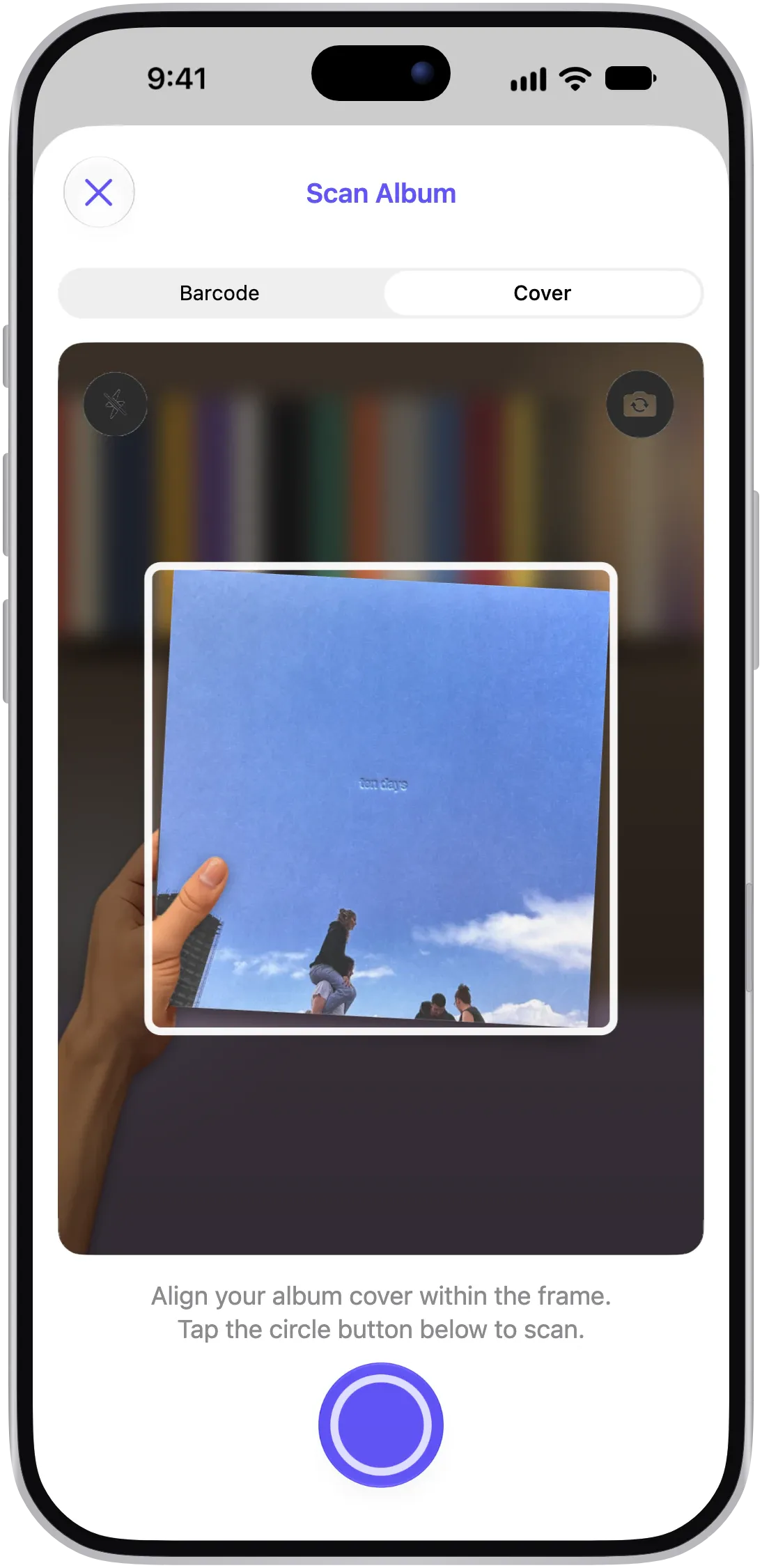
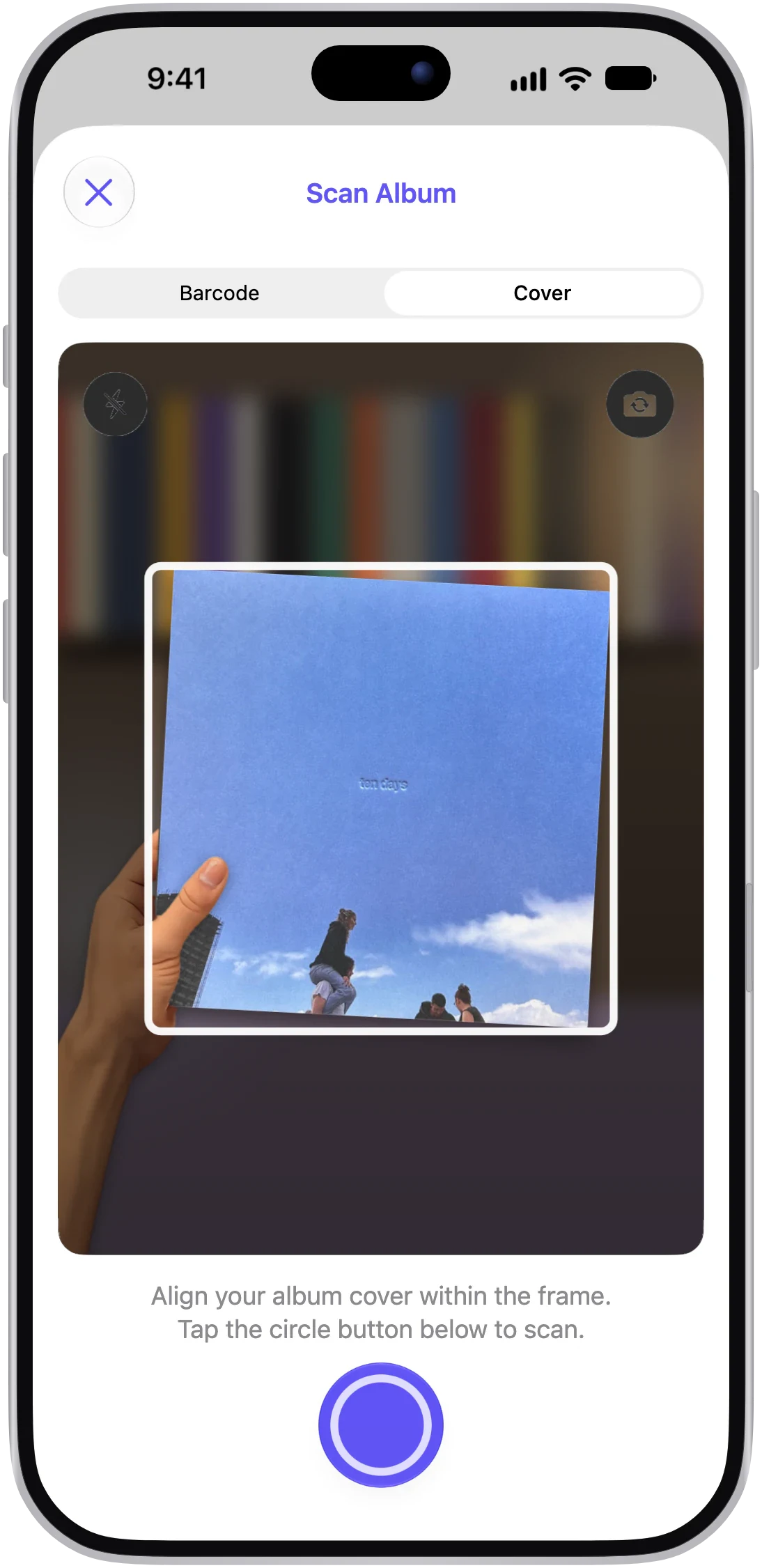
Line up the front of the sleeve in the camera frame and VinylBox looks for releases with matching artwork. It’s made for older records that don’t have a barcode, from the thrift-store bin to a parent’s shelf.
Barcode scanner
Scan the barcode on vinyl, CDs and cassettes. When a release has one, it’s the faster and more accurate way to a match, so start here with CDs and newer records.
Visual Intelligence
Spotted a record in a friend’s photo or a shop’s post? On devices that support Visual Intelligence, use it on a photo or screenshot, circle the album, and VinylBox shows matching releases.
From scan to your version
Here’s how to identify a vinyl record or CD with VinylBox, from the first scan to the copy on your shelf.
Choose Barcode or Cover
Open the scanner and pick a mode: Barcode if there is one, Cover for older sleeves. In Cover mode, line the sleeve up inside the frame, keep glare off it and tap the button to scan.
Look through the matches
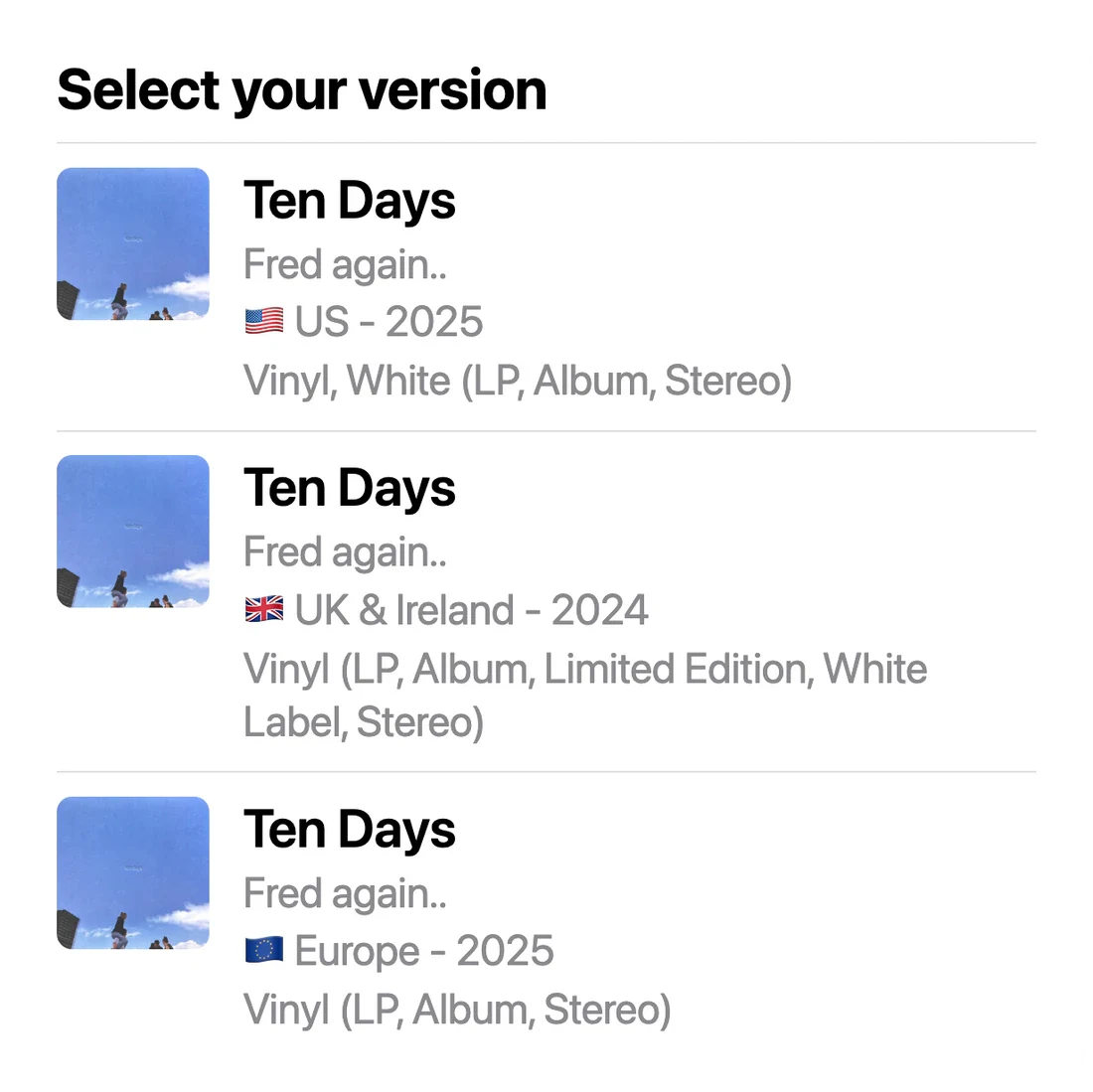
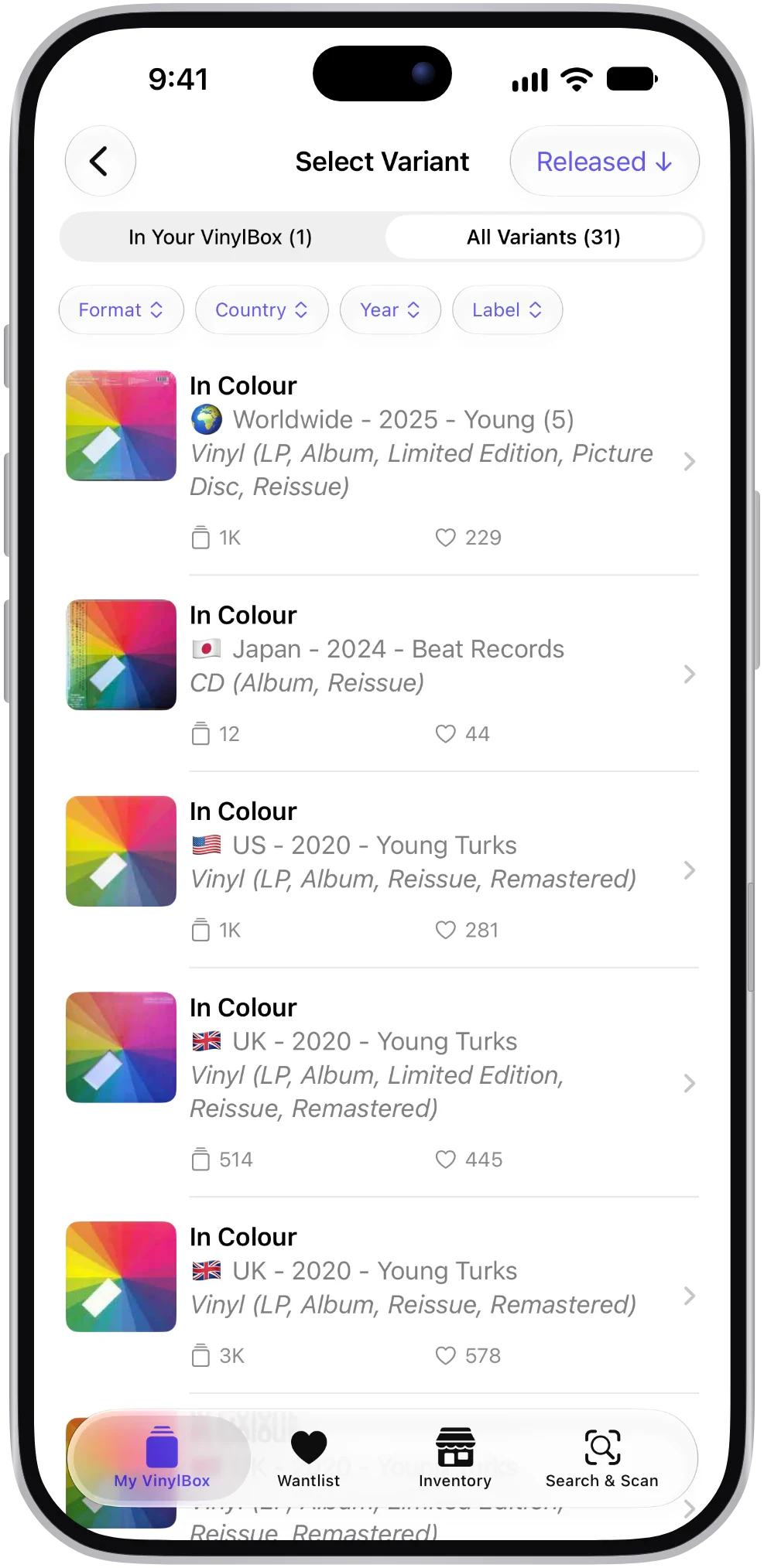
VinylBox lists what it found under “Select your version”, with the format, country, year and label of each release.
Filter or search the results
A popular album can have dozens of versions. Filter them by format, country, year or label, or search within the results for the catalog number printed on your sleeve.
Check the identifiers
Compare the barcodes, runouts and other identifiers VinylBox shows for each candidate with the ones on your copy. Not every release has them listed, but when they’re there, the runout is often what tells two pressings apart.
Add it to your collection
Save it to your Discogs collection or Wantlist. Scanning works without an account; adding a record needs a Discogs sign-in.
Same cover, different pressings
The sleeve tells you the album, not the copy. The same artwork can appear on the first pressing, later reissues, releases from other countries, club editions and colored vinyl. A cover scan finds the album. The details find your copy.
That’s why VinylBox shows the identifiers Discogs lists for each release while you scan. Check them against your record before you add it, so its value and any listing start from the right release.
- Matrix and runout
The codes etched or stamped in the dead wax, between the last groove and the label. They often tell pressings apart when the sleeve and label look the same.
- Barcodes and catalog numbers
Printed on the sleeve, label or spine. Helpful, but one barcode can be shared by several releases, and many older records have none.
- Format, country and year
Filter on these first. They can rule out much of the list before you reach for a flashlight.
Scanning CDs and cassettes
VinylBox works as a CD scanner app too. Most commercially released CDs carry a barcode, and so do many cassettes, so the barcode scanner is the quickest place to start. If the barcode is missing or won’t read, try scanning the front cover instead.
CDs come in versions of their own: the original release, remasters, deluxe and bonus-disc editions, and releases for different countries. Check the year, label and country in the results, or search them for the catalog number, to pick the one on your shelf.
- Barcode first
The quickest route to a match for most CDs.
- Editions and remasters
Use the year, label and catalog number to tell them apart.
- One collection
Vinyl, CDs and cassettes side by side, synced with Discogs.
Getting the best match
You can scan without a Discogs account. To add records to your collection or Wantlist, sign in with Discogs. If you don’t have an account yet, you can create one for free from the sign-in screen in VinylBox.
A scan gives you candidates, not a verdict. Cover scanning matches artwork, and artwork is often shared by several pressings. A barcode narrows things down, but barcodes can be shared too. Before you add a record, check the details against the copy in your hands.
Some scans won’t find a match. A worn or homemade sleeve, heavy glare or a release that isn’t on Discogs can all get in the way. Try scanning again, or search by artist, title or label and filter the results by format, country and year.
What to do after the scan
Once you’ve picked your version, the release is ready to file, to price or to pass on to another collector.
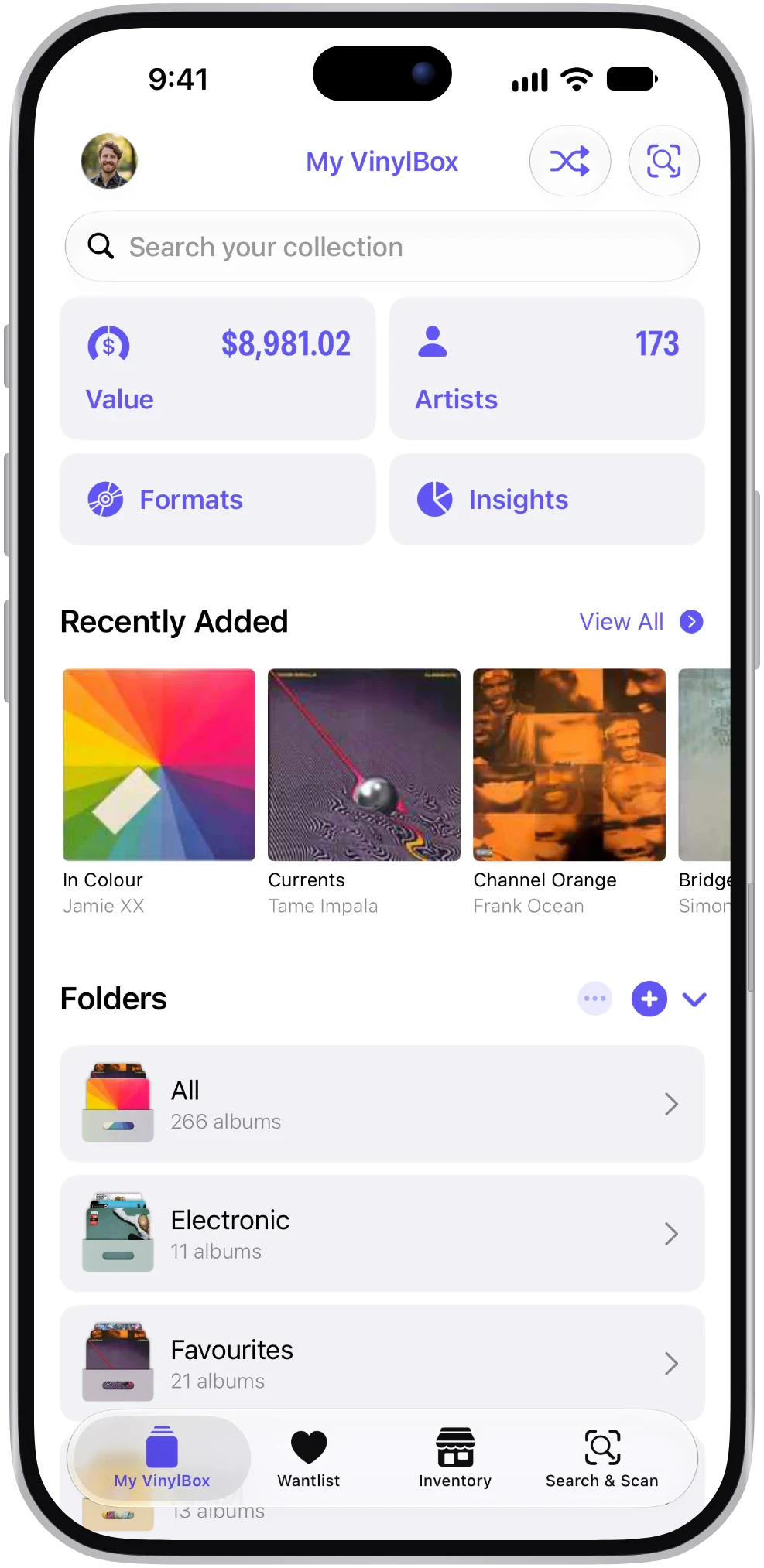
- Add it to your collection
It’s saved to your Discogs collection, so it shows up in VinylBox and on Discogs alike.
- Save it to your Wantlist
Scanning in a record shop? Tap the heart to save the ones you’re not buying yet, and find them again in your Wantlist.
- See what it’s worth
Release pages show an estimated value and recent sold prices for that version, when Discogs has sales to go on.
- Sell a spare
List a duplicate on the Discogs Marketplace with your Discogs seller account. Discogs fees apply, and publishing listings requires VinylBox Pro.
What collectors say about adding records
Real reviews from the App Store.
You scan the UPC code on the back of the sleeve and all versions of the album are listed. … For most albums, it actually gives you a list of the codes in the deadwax so you can find your exact release.
Love this app!!
Whenever I get a new vinyl, opening this app up and scanning the barcode is the 1st thing I do. Also seeing what my collection is potentially worth is nice.
Best app for adding albums to collection
Bar code scan makes it a breeze. Much better than the default app!
Can I give more stars
Hands down this is the best app to catalog your vinyl collection. … I used this app for over 1000 vinyl collection and this app made it so simple and easy.
Where to next
Questions, answered
The things collectors ask before they download.
How do I scan a vinyl record’s barcode?
Open the scanner in VinylBox, choose Barcode and point your camera at the barcode, usually on the back of the sleeve. VinylBox lists the matching releases. One barcode can be shared by several pressings, so check the catalog number and runouts before you add the record. Many older records have no barcode: switch to Cover and scan the front of the sleeve instead.
Can VinylBox identify a record without a barcode?
Yes. Switch the scanner to Cover mode, which is made for older records without a barcode, and it looks for releases with matching artwork. If the cover doesn’t turn up a match, search by artist, title or label and filter the results.
Will a scan tell me which pressing I own?
Not on its own. A scan finds the releases that match, and you choose the one you own. Filter the results, search them for your catalog number, then compare the runout and barcode with your copy.
Does it work as a CD scanner app?
Yes. VinylBox scans vinyl, CDs and cassettes. Start with the barcode on a CD, then use the year, label and catalog number to pick the right edition, such as the original release or a remaster.
Do I need a Discogs account to scan records?
No. You can scan and search without one. To add records to your collection or Wantlist, or to sell, sign in with Discogs. If you don’t have an account, you can create one for free. See how VinylBox works with Discogs.
Is the record scanner free?
VinylBox is free to download, and you can scan barcodes and covers on the free plan, which is perfect for getting started with a smaller collection. Releases you add from VinylBox count toward its limit, so a large collection may need VinylBox Pro, an optional subscription from just $1.99/month.
Does the official Discogs app have a scanner?
Yes, the official Discogs app scans barcodes. When we checked its App Store listing and help pages in October 2026, neither mentioned cover scanning, which helps most with older records. VinylBox scans covers and barcodes and works with the same Discogs account. It’s an independent app, not affiliated with Discogs. Compare Discogs apps.
VinylBox guides
Buying used vinyl records checklist: what to check before you pay
A checklist for buying used vinyl records at a shop or fair: skip duplicates, confirm the pressing, inspect the copy and check sold prices in VinylBox first.
How to identify a vinyl pressing
Identify which pressing of a vinyl record you own from its catalog number, labels and runouts, match its Discogs release and save it with VinylBox on iPhone.
Got a record in your hands? Scan it.
Get VinylBox for iPhone and iPad, point it at a cover or barcode, and find the version on your shelf. Free to download on the App Store.
Scan with your iPhone camera to get VinylBox.